

Bir Linux sunucusundan indirdiğiniz yedek, GitHub'daki bir sürüm sayfasından aldığınız araç ya da bir Arch Linux paketi (.pkg.tar.zst) Mac'inize .tar.zst uzantısıyla geldiğinde çift tıklamak sonuç vermez. Bunun iki nedeni var: Mac'in yerleşik Arşiv İzlencesi (Archive Utility) Zstandard (zstd) biçimini tanımıyor ve Apple, sistemle birlikte zstd komutunu dağıtmıyor. Bu rehberde dosyayı açmanın üç yolunu, açmadan önce yapılacak kontrolleri, Mac'te yeni .tar.zst arşivi oluşturmayı ve sık görülen hataların çözümünü anlatıyoruz. Arşiv açma, sınama ve oluşturma komutlarını Ekim 2026'da macOS 27.0.1 yüklü bir Apple Silicon Mac'te (bsdtar 3.5.3, libarchive 3.7.4) zstd 1.5.7 ile denedik; bu, yazının hazırlandığı tarihte Homebrew'un kurduğu sürümle aynı. Aşağıda alıntılanan tar ve zstd hata mesajları bu denemelerden birebir alındı.
Kısa cevap
Terminal'de iki komut yeterli. Homebrew kuruluysa zstd'yi bir kez kurun, sonra arşivin bulunduğu klasörde şunu çalıştırın:
zstd kurulduktan sonra güncel macOS sürümlerinde tar -xf arsiv.tar.zst de çalışır. Terminal kullanmak istemiyorsanız Keka uygulamasını kurun; Arşiv İzlencesi bu dosyayı açmaz.Bash:brew install zstd zstd -dc arsiv.tar.zst | tar -xf -
1. zstd'yi kurun: Homebrew veya MacPorts
Önce zstd'nin zaten kurulu olup olmadığına bakın:
Bash:
which zstd
zstd --version- Homebrew yoksa brew.sh sayfasındaki kurulum komutunu Terminal'e yapıştırın. Sayfa ayrıca bir .pkg kurulum paketine bağlantı veriyor; Homebrew belgelerine göre bu paket yalnızca Apple Silicon Mac'leri destekliyor.
- zstd'yi kurun: brew install zstd
- Yeni bir Terminal penceresi açın ve zstd --version ile doğrulayın.
| Kurulum | zstd'nin yeri | PATH durumu |
|---|---|---|
| Homebrew, Apple Silicon (M serisi) | /opt/homebrew/bin/zstd | Varsayılan PATH'te yok; shellenv satırı eklenmeli |
| Homebrew, Intel | /usr/local/bin/zstd | /usr/local/bin zaten /etc/paths içinde |
| MacPorts | /opt/local/bin/zstd | Kurulum paketi bu dizini kabuk yapılandırma dosyanıza ekler |
Bash:
echo 'eval "$(/opt/homebrew/bin/brew shellenv)"' >> ~/.zprofile
eval "$(/opt/homebrew/bin/brew shellenv)"
which zstd    # beklenen: /opt/homebrew/bin/zstd
Bash:
sudo port install zstd
which zstd # beklenen: /opt/local/bin/zstd2. Arşivi açmanın üç yolu
Yöntem 1: zstd ile boru (pipe), tar sürümünden bağımsız
Bash:
cd ~/Downloads
mkdir -p acilan
zstd -dc arsiv.tar.zst | tar -xf - -C acilan
Bash:
zstd -d arsiv.tar.zst          # arsiv.tar oluşur, .zst dosyası yerinde kalır
tar -xf arsiv.tar -C acilanYöntem 2: tar -xf (tar arka planda zstd'yi çağırır)
Mac'teki tar, libarchive tabanlı bsdtar'dır. Test makinemizde tar --version çıktısı "bsdtar 3.5.3 - libarchive 3.7.4 zlib/1.2.12 liblzma/5.4.3 bz2lib/1.0.8" oldu; listede zstd kütüphanesi yok. tar, dosyanın ilk dört baytından (28 B5 2F FD) zstd olduğunu anlar ve açma işini PATH'teki harici zstd programına devreder. Programı zstd -d -qq biçiminde çağırdığını, araya koyduğumuz bir kayıt betiğiyle doğruladık. zstd kuruluysa şu komutlar yeterlidir:
Bash:
tar -xf arsiv.tar.zst -C acilan
tar -xvf arsiv.tar.zst -C acilan                      # açılan her dosyayı yazdırır
tar -xf arsiv.tar.zst -C acilan proje/README.txt      # yalnızca tek dosya
tar -xf arsiv.tar.zst -C acilan --strip-components 1 # en üstteki klasörü atlar- zstd kurulu değilse tar şu hatayı verir: "Can't initialize filter; unable to run program "zstd -d -qq"". "Mac'teki tar zstd'yi yerel olarak destekler" ifadesi bu yüzden yarı doğrudur: tar biçimi tanır ama zstd programı olmadan açamaz.
- -qq zstd'nin mesajlarını bastırır. tar yalnızca "Child process exited with status 1" diyorsa zstd -t arsiv.tar.zst ile asıl hatayı görün.
- --use-compress-program kullanacaksanız açma seçeneğini kendiniz verin: tar --use-compress-program='zstd -d' -xf arsiv.tar.zst ya da unzstd. GNU tar'ın aksine bsdtar -d seçeneğini kendisi eklemez; yalnızca 'zstd' yazarsanız "Unrecognized archive format" hatası alırsınız.
Yöntem 3: Grafik arayüzlü uygulamalar
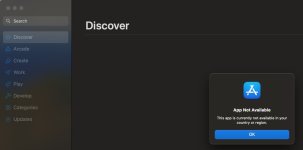
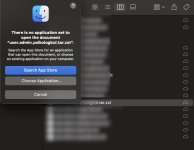
- Arşiv İzlencesi (Archive Utility): Açmaz. macOS 27'deki uygulamanın tanıdığı dosya türleri arasında ZIP, tar, gzip, bzip2, xz ve hatta 7-Zip var, zstd yok. zstd'yi Homebrew ile kurmak bu listeye yeni bir biçim eklemez.
- Keka: Resmî sitesindeki listede ZSTD hem oluşturma hem açma biçimleri arasında yer alıyor. Siteden ücretsiz indirilebiliyor; Mac App Store sürümü ücretli, uygulama aynı ve satın alırsanız geliştiriciyi desteklemiş olursunuz. Kurduktan sonra dosyayı Finder'da Control tuşuna basarak tıklayıp açılan menüden Keka ile açabilir ya da Keka simgesinin üzerine sürükleyebilirsiniz. Elinizde bir .tar kalırsa onu da aynı yolla açın.
- The Unarchiver: Resmî biçim listesinde zstd geçmiyor (Ekim 2026 itibarıyla), bu yüzden bu iş için önermiyoruz.
3. Açmadan önce: listeleme ve bütünlük testi
İnternetten indirilen ya da başka bir ekipten gelen arşivlerde birkaç saniyelik kontrol, yarım kalmış indirmeleri ve yanlış dosyaları daha açmadan yakalar:
Bash:
file arsiv.tar.zst                   # "Zstandard compressed data" görmelisiniz
zstd -t arsiv.tar.zst                # bütünlük testi (integrity test)
zstd -lv arsiv.tar.zst               # pencere boyutu ve sağlama toplamı bilgisi
tar -tvf arsiv.tar.zst | head -20    # açmadan içerik listesi
shasum -a 256 arsiv.tar.zst # yayıncının SHA-256 değeriyle karşılaştırın- file "HTML document text" diyorsa indirdiğiniz şey arşiv değil, bir hata ya da oturum açma sayfasıdır. Bağlantıyı tarayıcıda açıp gerçek dosyayı indirin.
- zstd -lv çıktısındaki "Check" satırı XXH64 ise zstd -t içeriği sağlama toplamıyla (checksum) doğrular; "None" ise yalnızca verinin hatasız çözülebildiğini denetler. Mac'te tar --zstd ile oluşturulan arşivlerde bu satır "None" çıkar, çünkü tar zstd'yi --no-check seçeneğiyle çağırır. Böyle bir arşivi baştan sona okuyarak sınamak için: zstd -dc arsiv.tar.zst | tar -tf - > /dev/null && echo TAMAM
- Listede dosyalar tek bir üst klasörün altında toplanmamışsa arşiv, bulunduğunuz klasöre dağılır. Her zaman boş bir hedef klasöre (-C acilan) açın.
- Mac'teki tar, yolların başındaki / işaretini varsayılan olarak kaldırır; ".." içeren ya da sembolik bağlantı (symlink) üzerinden hedefini değiştiren girdileri açmayı reddeder. Güvenmediğiniz arşivlerde bu korumayı kapatan -P seçeneğini kullanmayın.
4. Mac'te .tar.zst oluşturma
Bash:
# 1) En kısa yol: seviye 3, sağlama toplamı yok
tar --zstd -cf yedek.tar.zst klasor/

# 2) Uzantıya göre otomatik seçim (.tar.zst ya da .tzst)
tar -acf yedek.tar.zst klasor/

# 3) Önerilen: seviye ve iş parçacığı sizin elinizde, sağlama toplamı dahil
tar -cf - klasor/ | zstd -T0 -19 -o yedek.tar.zst

# 4) Aynısı tek bir tar komutuyla
tar --use-compress-program='zstd -T0 -19' -cf yedek.tar.zst klasor/- Linux'tan alışık olduğunuz tar -I 'zstd -T0 -19' Mac'te çalışmaz. bsdtar'da -I, dosya listesini bir dosyadan okuyan -T seçeneğinin eşanlamlısıdır; komut "Couldn't open zstd -T0 -19: No such file or directory" hatası verir ve geride 0 baytlık bir dosya bırakır. Aynı boş dosya, zstd kurulu değilken tar --zstd çalıştırdığınızda da oluşur ("Can't launch external program: zstd --no-check -3"); silmeyi unutmayın.
- Seviyeyi tar üzerinden de verebilirsiniz: tar --zstd --options zstd:compression-level=19 -cf yedek.tar.zst klasor/. 20-22 arası seviyelerde tar, --ultra seçeneğini kendisi ekler.
- --options zstd:threads=0 (tüm çekirdekler) harici zstd programına aktarılmadı, zstd:threads=4 gibi açık bir sayı ise aktarıldı. Tüm çekirdekleri kullanmak için 3. ya da 4. yolu seçin.
- Arşivi Linux kullanan bir ekip arkadaşınıza gönderecekseniz --no-mac-metadata --no-xattrs ekleyin. Aksi hâlde Mac'teki tar, genişletilmiş özniteliği (extended attributes, xattr) olan her dosya için ._ ile başlayan AppleDouble kayıtları ve xattr başlıkları yazar. Denememizde her dosya ve klasörde macOS'un eklediği com.apple.provenance özniteliği vardı, bu yüzden hepsi için bu kayıtlar yazıldı. Mac'te tar -tf bu kayıtları gizlediği için fark etmezsiniz; Linux'ta ise ._dosya kopyaları ve GNU tar'ın "Ignoring unknown extended header keyword 'LIBARCHIVE.xattr...'" uyarıları ortaya çıkar.
Bash:
tar --no-mac-metadata --no-xattrs --use-compress-program='zstd -T0 -19' -cf paylasim.tar.zst klasor/| Ayar | Ne zaman | Dikkat |
|---|---|---|
| --fast=N | Hızın her şeyden önemli olduğu geçici aktarımlar | Sıkıştırma oranı düşer |
| 1-3 (varsayılan 3) | Günlük işler, büyük veri, hızlı yedek | tar --zstd bu seviyeyi kullanır |
| 4-9 | Hız ile boyut arasında denge | Kazanç veriye göre değişir |
| 10-19 | Bir kez sıkıştırılıp çok kez indirilen dosyalar | Sıkıştırma belirgin biçimde yavaşlar |
| --ultra -20 … -22 | Boyuttan son birkaç yüzdeyi de kazanmak | Sıkıştırırken ve açarken daha çok bellek; --ultra olmadan -20 uyarıyla 19'a düşürülür |
| -T0 | Sıkıştırmada tüm fiziksel çekirdekler | Yalnızca sıkıştırmayı hızlandırır; iş parçacığı sayısı arttıkça bellek kullanımı da artar |
| --long=N | Çok büyük ve tekrar eden veri | N 27'den büyükse açan tarafta da --long=N gerekir |
5. Hata mesajları ve çözümleri
| Mesaj | Neden | Çözüm |
|---|---|---|
| zsh: command not found: zstd | zstd kurulu değil ya da PATH'te değil | brew install zstd; Apple Silicon'da shellenv satırını ekleyip yeni pencere açın; which zstd ile kontrol edin |
| tar: Error opening archive: Can't initialize filter; unable to run program "zstd -d -qq" | tar biçimi tanıdı ama harici zstd programını bulamadı | Bir üst satırdaki gibi |
| tar: Error opening archive: Unrecognized archive format | Dosya aslında zstd değil (HTML sayfası), içinde tar olmayan tek bir .zst, --use-compress-program'a -d verilmemiş ya da tar çok eski | Türünü file ile kontrol edin; tek dosyaysa zstd -d ile açın; --use-compress-program'a 'zstd -d' verin; tar eskiyse boru yöntemine geçin |
| tar: Missing type keyword in mtree specification | tar'a içinde tar olmayan tek bir .zst verdiniz; tar, içindeki metni mtree dosya listesi sandı (JSON gibi bazı metin dosyalarında görülür) | Dosyayı zstd -d ile açın; çıkan dosya bir arşiv değildir, doğrudan kullanılır |
| Frame requires too much memory for decoding, ardından "Use --long=31 or --memory=2048MB" | Arşiv --long=N (N 27'den büyük) ile oluşturulmuş; zstd açarken pencereyi varsayılan olarak 128 MiB ile sınırlar | Mesajdaki değeri kullanın: zstd -dc --long=31 arsiv.tar.zst | tar -xf - (ya da --memory=2048MB) |
| tar: Error opening archive: Child process exited with status 1 | zstd tar'ın içinde hata verdi, mesajı -qq yüzünden görünmüyor | zstd -t arsiv.tar.zst ile asıl hatayı görün |
| Read error (39) : premature end ya da Truncated input file | İndirme yarıda kesilmiş | Yeniden indirin, boyutu ve SHA-256 değerini karşılaştırın, yarım açılan dosyaları silin |
| Can't create '...': Permission denied | Hedef klasöre yazma izniniz yok | Ev dizininizde bir klasör oluşturup oraya çıkarın (mkdir -p ~/acilan, sonra -C ~/acilan); hemen sudo'ya başvurmayın |
| Operation not permitted | Terminal'in Masaüstü, Belgeler ya da İndirilenler klasörüne erişim izni yok | Sistem Ayarları > Gizlilik ve Güvenlik > Dosyalar ve Klasörler bölümünden Terminal'e izin verin |
| Açılan uygulama ya da komut için "açılamıyor" uyarısı | tar -xf, indirilen arşivin karantina (quarantine) özniteliğini açılan dosyalara aktarır | Kaynağı ve SHA-256 değerini doğrulayın; sonra Gizlilik ve Güvenlik altındaki Yine de Aç düğmesini kullanın ya da xattr -dr com.apple.quarantine klasor/ |
| zstd: arsiv.tar already exists; overwrite (y/n) ? | Önceki denemeden kalan çıktı | Eski dosyayı silin ya da -f ekleyin |
- Karantina: Karantina işaretli bir arşivle yaptığımız denemede tar -xf, com.apple.quarantine özniteliğini açılan her dosyaya taşıdı; boru ve iki adımlı yöntemle açılan dosyalarda bu öznitelik yoktu. Gatekeeper'ın ilk açılış denetimi bu özniteliğe dayandığından, bu denetim o dosyalar için devreye girmeyebilir; internetten gelen çalıştırılabilir dosyalarda kaynağı ve SHA-256 değerini kendiniz doğrulayın.
- sudo: Root olarak çalışan tar, arşivdeki sahip (owner) ve grup kimliklerini olduğu gibi geri yükler; başka bir makinede hazırlanmış bir arşivde bu kimlikler Mac'inizde karşılığı olmayan kullanıcılara ait olabilir. Yetki hatalarının genel mantığını root yetkisi gerektiren komut hataları konusunda anlattık.
6. .zst, .tar.zst ve .tzst arasındaki fark
zstd tek bir veri akışını sıkıştırır; klasör yapısını, dosya adlarını ve izinleri saklamaz. Birden çok dosyayı tek pakette toplamak tar'ın işidir. Uzantılar hangi katmanların bulunduğunu söyler:| Uzantı | İçerik | Nasıl açılır |
|---|---|---|
| .zst | zstd ile sıkıştırılmış tek dosya (ör. dump.sql.zst) | zstd -d dump.sql.zst |
| .tar.zst | Önce tar ile paketlenmiş, sonra zstd ile sıkıştırılmış klasör | zstd -dc x.tar.zst | tar -xf - |
| .tzst | .tar.zst ile aynı şey, kısa yazım | Aynı komut; tar'ın -a seçeneği de tanır |
| .pkg.tar.zst | Arch Linux paketi (özünde bir .tar.zst) | İçeriği tar -tvf ile incelenir; Mac'e kurulmaz |
7. Karma ekipler için Linux ve Windows komutları
GNU tar, 1.31 sürümünden (Ocak 2019) beri zstd'yi destekler ve okurken biçimi kendisi tanır, ama yine de zstd paketine ihtiyaç duyar:
Bash:
sudo apt install zstd          # Debian, Ubuntu
sudo dnf install zstd          # Fedora, RHEL, AlmaLinux, Rocky Linux
sudo pacman -S zstd            # Arch (genellikle zaten kurulu)

tar --zstd -xf arsiv.tar.zst -C hedef/
tar -I 'zstd -T0 -19' -cf arsiv.tar.zst klasor/    # Linux'ta -I çalışır
zstd -dc --long=31 arsiv.tar.zst | tar -xf - # eski tar ya da uzun pencereWindows tarafında üç seçenek var:
- Dosya Gezgini: Windows 11, 2023'te libarchive tabanlı yerleşik arşiv desteği kazandı; Microsoft'un yardım sayfası 24H2 sürümü için ZIP, RAR, 7z ve TAR biçimlerini sayıyor. Güncel bir Windows 11'de .tar.zst ya da .tzst dosyasını Dosya Gezgini'nde açıp içindekileri sürükleyerek çıkarabilir ya da Tümünü Ayıkla komutunu deneyebilirsiniz. Sisteminiz bu dosyayı açamıyorsa diğer iki yola geçin.
- 7-Zip: 24.01 sürümünden beri .zst açabiliyor; önce bir .tar çıkar, ikinci adımda onu açarsınız. ZSTD ile ilgili hatalar sonraki sürümlerde düzeltildiği için (24.07, CVE-2024-11477 açığını kapattı) güncel sürümü kurun.
- Komut satırı: zstd'yi winget ile kurup yeni bir terminal açın; arşivi Windows 10 ve 11'de yerleşik gelen tar.exe açar:
Kod:
winget install -e --id Meta.Zstandard
zstd -d arsiv.tar.zst
tar -xf arsiv.tarSık sorulan sorular
Hiçbir şey kurmadan .tar.zst açabilir miyim?Mac'te hayır. Apple sistemle zstd komutu dağıtmıyor, Arşiv İzlencesi de bu biçimi tanımıyor. En hafif seçenek zstd'yi Homebrew ya da MacPorts ile kurmaktır; Terminal kullanmak istemiyorsanız Keka'yı kurun.
.tzst ile .tar.zst arasında fark var mı?
Hayır, içerik aynıdır; .tzst yalnızca kısa yazımdır. Dosyayı yeniden adlandırmanıza gerek yok, yukarıdaki komutlar ikisinde de çalışır.
zstd'yi kurdum ama Terminal hâlâ "command not found" diyor.
Apple Silicon bir Mac'te büyük olasılıkla /opt/homebrew/bin PATH'te değil. shellenv satırını ~/.zprofile dosyasına ekleyin, yeni bir Terminal penceresi açın ve which zstd ile kontrol edin.
Yedekler için hangi seviyeyi seçmeliyim?
Gece alınan büyük yedeklerde varsayılan 3 ya da 3-9 arası çoğu zaman yeterlidir; bir kez oluşturulup çok kez indirilen dağıtım dosyalarında 19 mantıklıdır. --ultra ile oluşturulan arşivler daha çok bellek ister ama varsayılan ayarlarla açılır; 27'den büyük --long değerleri ise açan herkesin --long=N eklemesini gerektirir, bu yüzden onları yalnızca arşivi açacak kişiler biliyorsa kullanın. Kararı kendi verinizde zstd -b ile ölçerek verin.
Arşivi sudo ile açmalı mıyım?
Çoğu zaman hayır. Root olarak çalışan tar, arşivdeki sahip ve grup kimliklerini geri yükler; ev dizininizde size ait olmayan dosyalar oluşabilir. Kendi kullanıcınızla, yazma izniniz olan bir klasöre açın.
zstd uzun süreli arşivleme için güvenilir mi?
Biçim açık ve RFC 8878'de (Şubat 2021, Informational) belgelenmiş; Linux dağıtımlarında, Windows'ta ve pek çok araçta destekleniyor. Yine de her arşivin yanında SHA-256 değerini saklayın ve düzenli olarak geri yükleme testi yapın.
Sonuç ve sonraki adımlar
Mac'te .tar.zst açmanın özü şu: zstd'yi kurun, arşivi zstd -dc … | tar -xf - ile ya da güncel macOS sürümlerinde tar -xf ile açın, Terminal kullanmak istemeyenlere Keka'yı önerin. Sonraki adımlar:- which zstd ile kurulumu ve PATH ayarını doğrulayın.
- Önemli arşivleri açmadan önce zstd -t ve tar -tvf ile kontrol edin, SHA-256 değerini karşılaştırın.
- Kendi arşivlerinizi tar -cf - klasor/ | zstd -T0 -19 -o … ile oluşturun; böylece sağlama toplamı da eklenir.
- Linux kullanan ekip arkadaşlarınıza göndereceğiniz arşivlerde --no-mac-metadata --no-xattrs kullanın.
A server backup, a tool from a GitHub release page, an Arch Linux package (.pkg.tar.zst): when one of these lands on your Mac as a .tar.zst file and you double-click it, nothing useful happens. There are two reasons: the Mac's built-in Archive Utility does not understand Zstandard (zstd), and Apple does not ship a zstd command with the system. This guide covers three ways to extract the file, the checks worth running first, how to create .tar.zst archives on a Mac, and the errors you are most likely to hit. We ran the Mac commands for extracting, testing and creating archives in October 2026 on an Apple Silicon Mac with macOS 27.0.1 (bsdtar 3.5.3, libarchive 3.7.4) and zstd 1.5.7, the version Homebrew installed at the time of writing. The tar and zstd error messages quoted below are copied verbatim from those runs.
Quick answer
Two commands in Terminal. With Homebrew installed, install zstd once, then run this in the folder that holds the archive:
Once zstd is installed, tar -xf archive.tar.zst also works on current macOS releases. If you would rather avoid Terminal, install Keka; Archive Utility will not open this file.Bash:brew install zstd zstd -dc archive.tar.zst | tar -xf -
1. Install zstd with Homebrew or MacPorts
First check whether zstd is already there:
Bash:
which zstd
zstd --version- If you don't have Homebrew, paste the install command from brew.sh into Terminal. The same page links a .pkg installer, which according to Homebrew's documentation supports Apple Silicon Macs only.
- Install zstd: brew install zstd
- Open a new Terminal window and confirm with zstd --version.
| Install | Where zstd lives | PATH |
|---|---|---|
| Homebrew, Apple Silicon (M-series) | /opt/homebrew/bin/zstd | Not in the default PATH; add the shellenv line |
| Homebrew, Intel | /usr/local/bin/zstd | /usr/local/bin is already listed in /etc/paths |
| MacPorts | /opt/local/bin/zstd | The installer adds it to your shell configuration file |
Bash:
echo 'eval "$(/opt/homebrew/bin/brew shellenv)"' >> ~/.zprofile
eval "$(/opt/homebrew/bin/brew shellenv)"
which zstd    # expected: /opt/homebrew/bin/zstd
Bash:
sudo port install zstd
which zstd # expected: /opt/local/bin/zstd2. Three ways to extract the archive
Method 1: pipe through zstd (works with any tar version)
Bash:
cd ~/Downloads
mkdir -p extracted
zstd -dc archive.tar.zst | tar -xf - -C extracted
Bash:
zstd -d archive.tar.zst          # creates archive.tar, keeps the .zst
tar -xf archive.tar -C extractedMethod 2: tar -xf (tar calls zstd behind the scenes)
The tar on a Mac is bsdtar, built on libarchive. On our test machine tar --version printed "bsdtar 3.5.3 - libarchive 3.7.4 zlib/1.2.12 liblzma/5.4.3 bz2lib/1.0.8", with no zstd library in that list. tar recognises zstd from the first four bytes of the file (28 B5 2F FD) and hands decompression to an external zstd program found on your PATH; a logging wrapper we put in between showed it runs zstd -d -qq. With zstd installed, these commands are all you need:
Bash:
tar -xf archive.tar.zst -C extracted
tar -xvf archive.tar.zst -C extracted                       # print each file as it is extracted
tar -xf archive.tar.zst -C extracted project/README.txt     # extract a single file
tar -xf archive.tar.zst -C extracted --strip-components 1 # drop the top-level folder- Without zstd, tar stops with "Can't initialize filter; unable to run program "zstd -d -qq"". The common claim that "macOS tar supports zstd natively" is therefore only half true: tar recognises the format but cannot decompress it on its own.
- -qq silences zstd. If tar only says "Child process exited with status 1", run zstd -t archive.tar.zst to see the real error.
- With --use-compress-program, pass the decompress flag yourself: tar --use-compress-program='zstd -d' -xf archive.tar.zst, or use unzstd. Unlike GNU tar, bsdtar does not add -d for you; plain 'zstd' ends in "Unrecognized archive format".
Method 3: GUI apps
- Archive Utility: No. On macOS 27 the file types it declares include ZIP, tar, gzip, bzip2, xz and even 7-Zip, but not zstd, and installing zstd with Homebrew does not add anything to that list.
- Keka: Its official site lists ZSTD among both the formats it creates and the formats it extracts. It is a free download from the site; the Mac App Store version is paid, but it is the same app and buying it supports the developer. Control-click the file in Finder and open it with Keka, or drop it on the Keka icon. If you end up with a .tar, open that the same way.
- The Unarchiver: Its official format list does not mention zstd (as of October 2026), so we don't recommend it for this job.
3. Before you extract: list and test
For archives from the internet or from another team, a few seconds of checking catches broken downloads and wrong files before you extract anything:
Bash:
file archive.tar.zst                   # should say "Zstandard compressed data"
zstd -t archive.tar.zst                # integrity test
zstd -lv archive.tar.zst               # window size and checksum info
tar -tvf archive.tar.zst | head -20    # list contents without extracting
shasum -a 256 archive.tar.zst # compare with the publisher's SHA-256- If file says "HTML document text", you downloaded an error or login page, not an archive. Open the link in a browser and fetch the real file.
- If the "Check" line in zstd -lv shows XXH64, zstd -t verifies the content against a checksum; "None" means it can only confirm that the data decodes cleanly. Archives created with tar --zstd on a Mac show "None", because tar runs zstd with --no-check. To test such an archive end to end: zstd -dc archive.tar.zst | tar -tf - > /dev/null && echo OK
- If the listing does not sit under a single top-level folder, the archive will spill files into your current directory. Always extract into an empty target (-C extracted).
- Mac tar strips a leading / from paths by default and refuses entries that contain ".." or would be redirected through a symlink. Don't use -P, which turns this protection off, on archives you don't trust.
4. Creating .tar.zst on a Mac
Bash:
# 1) Shortest: level 3, no checksum
tar --zstd -cf backup.tar.zst folder/

# 2) Pick compression from the suffix (.tar.zst or .tzst)
tar -acf backup.tar.zst folder/

# 3) Recommended: you choose level and threads, checksum included
tar -cf - folder/ | zstd -T0 -19 -o backup.tar.zst

# 4) The same as a single tar command
tar --use-compress-program='zstd -T0 -19' -cf backup.tar.zst folder/- The Linux habit tar -I 'zstd -T0 -19' does not work on a Mac. In bsdtar, -I is a synonym for -T (read the list of files from a file), so the command fails with "Couldn't open zstd -T0 -19: No such file or directory" and leaves a 0-byte file behind. Running tar --zstd without zstd installed leaves the same empty file ("Can't launch external program: zstd --no-check -3"); delete it.
- You can set the level through tar: tar --zstd --options zstd:compression-level=19 -cf backup.tar.zst folder/. For levels 20-22, tar adds --ultra itself.
- --options zstd:threads=0 (all cores) was not passed on to the external zstd, while an explicit count such as zstd:threads=4 was. To use every core, choose option 3 or 4.
- If a colleague on Linux will open the archive, add --no-mac-metadata --no-xattrs. Otherwise Mac tar writes ._ AppleDouble entries and xattr headers for every file that carries extended attributes. In our test every file and folder had a com.apple.provenance attribute set by macOS, so every one of them got these extra records. You won't notice on the Mac, because tar -tf hides them, but on Linux they appear as ._file copies and as GNU tar warnings such as "Ignoring unknown extended header keyword 'LIBARCHIVE.xattr...'".
Bash:
tar --no-mac-metadata --no-xattrs --use-compress-program='zstd -T0 -19' -cf share.tar.zst folder/| Setting | When to use it | Watch out for |
|---|---|---|
| --fast=N | Throwaway transfers where speed is all that matters | Lower compression ratio |
| 1-3 (default 3) | Everyday work, big data, quick backups | tar --zstd uses level 3 |
| 4-9 | A balance between speed and size | Gains depend on the data |
| 10-19 | Files compressed once and downloaded many times | Compression gets much slower |
| --ultra -20 to -22 | Squeezing out the last few percent | More memory to compress and to decompress; without --ultra, -20 is cut back to 19 with a warning |
| -T0 | All physical cores while compressing | Speeds up compression only; memory use grows with each thread |
| --long=N | Very large, repetitive data | If N is above 27, whoever extracts it also needs --long=N |
5. Error messages and fixes
| Message | Cause | Fix |
|---|---|---|
| zsh: command not found: zstd | zstd is not installed or not on PATH | brew install zstd; on Apple Silicon add the shellenv line and open a new window; check with which zstd |
| tar: Error opening archive: Can't initialize filter; unable to run program "zstd -d -qq" | tar recognised the format but found no external zstd program | Same as the row above |
| tar: Error opening archive: Unrecognized archive format | Not really zstd (an HTML page), a single .zst with no tar inside, --use-compress-program without -d, or a very old tar | Check the type with file; for a single file use zstd -d; give --use-compress-program 'zstd -d'; on an old tar use the pipe |
| tar: Missing type keyword in mtree specification | You gave tar a single .zst with no tar inside, and tar mistook the text for an mtree file list (seen with some text files, such as JSON) | Decompress it with zstd -d; the result is the file itself, not an archive |
| Frame requires too much memory for decoding, followed by "Use --long=31 or --memory=2048MB" | The archive was made with --long=N (N above 27); by default zstd caps the decompression window at 128 MiB | Use the value from the message: zstd -dc --long=31 archive.tar.zst | tar -xf - (or --memory=2048MB) |
| tar: Error opening archive: Child process exited with status 1 | zstd failed inside tar; -qq hides its message | Run zstd -t archive.tar.zst to see the real error |
| Read error (39) : premature end, or Truncated input file | Incomplete download | Download again, compare size and SHA-256, delete any partly extracted files |
| Can't create '...': Permission denied | You can't write to the target folder | Create a folder in your home directory and extract there (mkdir -p ~/extracted, then -C ~/extracted); don't reach for sudo first |
| Operation not permitted | Terminal has no access to Desktop, Documents or Downloads | Allow Terminal under System Settings > Privacy & Security > Files & Folders |
| An extracted app or tool "cannot be opened" | tar -xf copies the downloaded archive's quarantine attribute to the extracted files | Verify the source and SHA-256, then use Open Anyway under Privacy & Security, or xattr -dr com.apple.quarantine folder/ |
| zstd: archive.tar already exists; overwrite (y/n) ? | Output left over from an earlier attempt | Delete the old file or add -f |
- Quarantine: In a test with a quarantined archive, tar -xf copied the com.apple.quarantine attribute onto every extracted file, while files extracted with the pipe or the two-step method carried no such attribute. Gatekeeper's first-launch check relies on that attribute, so those files may skip it; verify the source and SHA-256 of downloaded executables yourself.
- sudo: Run as root, tar restores the owner and group IDs stored in the archive. For an archive built on another machine, those IDs may belong to users that don't exist on your Mac. We explain how privilege errors work in general in fixing the "this command must be run as root" error.
6. .zst vs .tar.zst vs .tzst
zstd compresses a single stream of data; it does not store folders, file names or permissions. Bundling many files into one is tar's job. The extension tells you which layers are present:| Extension | What it is | How to open it |
|---|---|---|
| .zst | One file compressed with zstd (e.g. dump.sql.zst) | zstd -d dump.sql.zst |
| .tar.zst | A folder bundled with tar, then compressed with zstd | zstd -dc x.tar.zst | tar -xf - |
| .tzst | The same as .tar.zst, short form | Same command; tar's -a option recognises it too |
| .pkg.tar.zst | An Arch Linux package (a .tar.zst underneath) | Inspect it with tar -tvf; it does not install on a Mac |
7. Linux and Windows one-liners for mixed teams
GNU tar has supported zstd since version 1.31 (January 2019) and detects it automatically when reading, but it still needs the zstd package:
Bash:
sudo apt install zstd          # Debian, Ubuntu
sudo dnf install zstd          # Fedora, RHEL, AlmaLinux, Rocky Linux
sudo pacman -S zstd            # Arch (usually installed already)

tar --zstd -xf archive.tar.zst -C target/
tar -I 'zstd -T0 -19' -cf archive.tar.zst folder/    # -I works on Linux
zstd -dc --long=31 archive.tar.zst | tar -xf - # old tar or long windowOn Windows you have three options:
- File Explorer: Windows 11 gained built-in, libarchive-based archive support in 2023, and Microsoft's help page lists ZIP, RAR, 7z and TAR for version 24H2. On a current Windows 11, open the .tar.zst or .tzst in File Explorer and drag the files out, or try Extract All. If your system can't open it, use one of the other two.
- 7-Zip: Unpacks .zst since version 24.01, which gives you a .tar to open as a second step. Later releases fixed ZSTD-related bugs (24.07 closed CVE-2024-11477), so install the current version.
- Command line: Install zstd with winget, open a new terminal, and let the tar.exe built into Windows 10 and 11 unpack the archive:
Kod:
winget install -e --id Meta.Zstandard
zstd -d archive.tar.zst
tar -xf archive.tarFAQ
Can I open a .tar.zst without installing anything?Not on a Mac. Apple ships no zstd command and Archive Utility does not support the format. The lightest option is zstd from Homebrew or MacPorts; if you want to avoid Terminal, use Keka.
Is .tzst different from .tar.zst?
No, the content is the same and .tzst is just shorter. You don't need to rename anything; every command above works with both.
I installed zstd, but Terminal still says "command not found".
On an Apple Silicon Mac, /opt/homebrew/bin is probably missing from PATH. Add the shellenv line to ~/.zprofile, open a new Terminal window and check with which zstd.
Which level should I use for backups?
For large nightly backups, the default 3 or something between 3 and 9 is usually enough; for distribution files compressed once and downloaded many times, 19 makes sense. --ultra archives need more memory but open with default settings; --long values above 27 force everyone who extracts the archive to add --long=N, so use them only when those people know about it. Let zstd -b on your own data make the call.
Should I extract with sudo?
Usually not. As root, tar restores the owner and group IDs from the archive, which can leave files in your home folder that you don't own. Extract as yourself into a folder you can write to.
Is zstd a safe choice for long-term archives?
The format is openly documented in RFC 8878 (February 2021, Informational) and is supported across Linux distributions, Windows and many tools. Still, keep a SHA-256 next to every archive and run restore tests regularly.
Conclusion and next steps
On a Mac it comes down to this: install zstd, extract with zstd -dc … | tar -xf - or, on current macOS releases, with tar -xf, and point colleagues who avoid Terminal to Keka. Next steps:- Confirm the install and your PATH with which zstd.
- Check important archives with zstd -t and tar -tvf before extracting, and compare the SHA-256.
- Create your own archives with tar -cf - folder/ | zstd -T0 -19 -o …, which also adds a checksum.
- Use --no-mac-metadata --no-xattrs for archives you send to Linux users.
Ekler
Son düzenleyen:


