

Mac'te "otomatik tamamlama önerilerini kapatmak" isteyenlerin çoğu aslında dört ayrı özellikten biriyle uğraşıyor: form doldurma, kayıtlı parolalar, adres çubuğu önerileri ve Chrome'un arama/URL tamamlaması. Her birinin anahtarı farklı bir yerdedir ve birini kapatmak ötekileri etkilemez. Bu rehber önce karşınızdaki önerinin hangisi olduğunu ayırt etmeyi, ardından Safari ve Chrome'da (kısaca Firefox ve Edge'de) doğru ayarı bulmayı anlatıyor. Geliştirdiğiniz formlar yanlış bilgilerle dolduruluyorsa geliştirici bölümüne, Mac'i başkalarıyla paylaşıyorsanız gizlilik bölümüne bakın. Safari ve macOS etiketlerini 27 Ekim 2026'da macOS 27.0.1 Golden Gate ve Safari 27.0.1'in kendi Türkçe ve İngilizce metinlerinden kontrol ettik. Chrome için Google'ın güncel yardım sayfalarını ve Chromium kaynak kodunu esas aldık (Mac'teki kararlı sürüm Chrome 156). Menü adları sürümden sürüme değişebilir; farklı bir etiket görürseniz Sistem Ayarları'nın ya da Chrome ayarlarının arama kutusuna bir anahtar sözcük yazın, Safari'de ise aynı sekmedeki en yakın ifadeye bakın.
"Otomatik doldurma" denince kastedilen dört şey
- Form otomatik doldurma (AutoFill): Ad, adres, telefon, e-posta ve kart bilgilerinin form alanlarına yazılması. Safari bu bilgileri Kişiler uygulamasındaki kişi kartlarından ve kayıtlı ödeme kartlarından, Chrome ise kendi kayıtlarından, Google Hesabı'ndan ve Google Cüzdan'dan alır. Sitelerde yazdığınız serbest metinlerin geçmişi de bu gruba girer.
- Kayıtlı parolalar ve geçiş anahtarları (passkey): Giriş alanının altında beliren anahtar simgeli öneriler. Safari'de kaynak Parolalar uygulaması ve iCloud Anahtar Zinciri, Chrome'da Google Şifre Yöneticisi'dir.
- Adres çubuğu önerileri: Safari'nin Akıllı Arama alanında ya da Chrome'un adres çubuğunda yazarken açılan liste. Kaynakları geçmiş, yer işaretleri, açık sekmeler, Safari önerileri ve arama motoru önerileridir. Yazdığınız alan adının satır içinde kendiliğinden tamamlanması da buradan gelir.
- Chrome'un arama ve URL tamamlaması: Chrome'un yazdıklarınızı varsayılan arama motoruna gönderip öneri almasıdır. Bunu yöneten anahtar eski sürümlerde "Autocomplete searches and URLs" adını taşıyordu; güncel sürümlerde "Arama önerilerini iyileştir" (Improve search suggestions) olarak geçer.
Safari: macOS 27 Golden Gate ve Safari 27
Ayarlar > Otomatik Doldur (AutoFill)
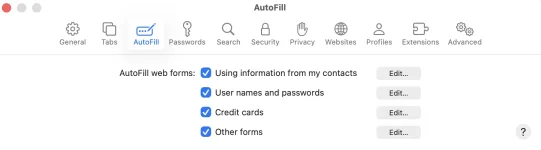
Safari > Ayarlar (eski sürümlerde Tercihler) penceresinde Otomatik Doldur sekmesini açın. "Web formlarını otomatik doldur:" başlığı altında dört kutu vardır ve her birinin yanındaki Düzenle… düğmesi kayıtlı bilgileri gösterir:- Kişilerimdeki bilgileri kullanarak (Using information from my contacts): Formları Kişiler uygulamasındaki kartlardan doldurur. Safari eski bir adres öneriyorsa kutuyu kapatmak yerine Kişiler'deki kendi kartınızı düzeltmek çoğu zaman daha iyi sonuç verir.
- Kullanıcı adları ve parolaları (User names and passwords): Safari'nin parola kaydetmesini ve doldurmasını yönetir. Düzenle… düğmesi Parolalar uygulamasını açar.
- Kredi kartları (Credit cards): Kayıtlı kartları doldurur; Düzenle… ile kart ekleyip silebilirsiniz.
- Başka formlar (Other forms): Sitelerde yazdığınız serbest metinleri hatırlar. Düzenle… listesinde bir siteyi seçip Sil diyebilir ya da Tümünü Sil'i kullanabilirsiniz. Tek bir sitedeki tuhaf öneriler için kutuyu kapatmak yerine o siteyi listeden silmek yeterlidir.
Parolalar uygulaması ve Sistem Ayarları
macOS Sequoia'dan bu yana parolalar ve geçiş anahtarları ayrı bir Parolalar uygulamasında tutuluyor. Apple'ın Safari 27 kılavuzu Safari'nin ayar sekmeleri arasında Parolalar'ı artık saymıyor; parolaları uygulamadan yönetirsiniz.- Sistem genelinde kapatmak: Sistem Ayarları > Genel > Otomatik Doldurma ve Parolalar (AutoFill & Passwords) bölümündeki "Parolaları ve Geçiş Anahtarlarını Otomatik Doldur" anahtarı, uygulamalarda ve Safari'de parola, geçiş anahtarı ve doğrulama kodu önerilerini birlikte durdurur. Kurumun yönettiği Mac'lerde bu anahtar MDM ile kilitlenmiş olabilir.
- Doğrulama kodları: Aynı bölümdeki "Kullandıktan Sonra Sil" seçeneği, Mesajlar ve Mail'e gelen tek kullanımlık kodları kullanıldıktan sonra siler.
- Tek bir parolayı silmek: Parolalar uygulamasında hesabı seçin, Düzenle'ye, ardından Parolayı Sil… düğmesine tıklayıp silmeyi onaylayın. Silinen parola ve geçiş anahtarları 30 gün boyunca kenar çubuğundaki Silinenler bölümünde kalır; Kurtar ile geri alınabilir.
- Güçlü parola önerisi: Parolalar > Ayarlar'daki "Güçlü Parolalar Öner" seçeneği, Safari'nin kayıt ve parola değiştirme formlarında parola önerip önermeyeceğini belirler.
Ayarlar > Arama (Search): hangi kutu ne yapar?
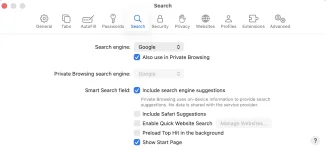
Bu konunun ilk sürümündeki yapılandırma (arama motoru önerileri açık, Safari önerileri kapalı) hâlâ işe yarıyor, ancak açıklaması eksikti. Apple'ın Safari 27 kılavuzuna göre kutuların görevleri şöyle:- Arama motoru önerilerini dahil et: Yazdığınız terimler, siz Return'e basmadan arama motoruna gönderilir ve motorun önerileri listede görünür. Google önerilerini istiyorsanız açık bırakın; arama motorunun bu terimleri kaydedebileceğini de bilin.
- Safari önerilerini dahil et: Apple'ın internet, Müzik, App Store, film seansları ve yakındaki yerlerden derlediği öneriler. Geçmişiniz ve yer işaretleriniz bu kutuya bağlı değildir; kutuyu kapattığınızda geçmişten gelen alan adı önerileri sürer.
- Hızlı web sitesi aramasını etkinleştir: Bir sitenin kendi arama kutusunu hatırlar; sonra site adını ve aranacak terimi yazarak doğrudan o sitede arama yaparsınız. Web Sitelerini Yönet… listesinden siteleri tek tek silebilirsiniz.
- En İyi Eşleşen'i arka planda önceden yükle: Yer işaretleri ve geçmişe göre en iyi eşleşme sayılan sayfayı siz seçmeden yüklemeye başlar. Kapatmak yalnızca önceden yüklemeyi durdurur, öneriyi listeden kaldırmaz.
- Başlangıç Sayfasını Göster: Bir web sayfasındayken Akıllı Arama alanına tıkladığınızda alanın altında başlangıç sayfanızı gösterir: Favoriler, Sık Gidilen ve başlangıç sayfası için seçtiğiniz diğer bölümler. Bu kutucuklar size istenmeyen öneri gibi geliyorsa kapatın.
Tek bir alan adını geçmişi silmeden öneriden çıkarmak
Apple, Akıllı Arama listesindeki tek bir öneriyi doğrudan silmek için bir kısayol belgelemiyor. Bu yüzden önerinin kaynağını silmek gerekir:- Geçmiş > Tüm Geçmişi Göster (History > Show All History) penceresini açın.
- Sağ üstteki arama alanına alan adının bir parçasını yazın, örneğin eskifirma.
- İlk sonuca tıklayın, Shift tuşuna basılı tutarak sonuncuya tıklayın ve seçili kayıtları Delete (⌫) tuşuyla silin.
- Yer İşaretleri > Yer İşaretlerini Düzenle penceresinde aynı alan adını arayın; yer işaretleri ve Favoriler de öneri üretir.
- Sık Gidilen kutucukları geçmişten üretilir; ilgili kayıtları sildikten sonra kaybolmaları gerekir. Bölümü tamamen gizlemek için Yer İşaretleri > Başlangıç Sayfasını Göster'i seçin, sağ alt köşedeki Düzenle'ye tıklayın ve Sık Gidilen kutusunun işaretini kaldırın.
- Aynı Apple Hesabı'na bağlı bir iPhone ya da iPad'de o site açık bir sekmede duruyorsa kapatın. Safari, diğer aygıtlarınızdaki geçmişi, yer işaretlerini ve açık sayfaları da öneri olarak gösterebilir.
Geçmişin kendiliğinden temizlenmesi ve iCloud
Safari geçmişi bir yıla kadar saklayabilir. Ayarlar > Genel > "Geçmiş öğelerini sil:" menüsünden Bir gün sonra, Bir hafta sonra, İki hafta sonra, Bir ay sonra, Bir yıl sonra ya da Elle seçeneklerinden birini seçin. Eşzamanlamayı Sistem Ayarları'nda yönetirsiniz: kenar çubuğunun en üstündeki adınıza (Apple Hesabı) tıklayın, ardından iCloud > iCloud'a Kaydedilenler > Tümünü Gör altındaki Safari ve Parolalar (bazı sürümlerde Parolalar ve Anahtar Zinciri) anahtarlarını kullanın. Safari anahtarı kapalıysa geçmiş ve yer işaretleri o Mac'te kalır; Parolalar anahtarı kapalıysa parolalarınız iPhone'a gitmez.Chrome (Mac)
Kayıtlı form bilgileri: chrome://settings/autofill
Adres çubuğuna chrome://settings/autofill yazın ya da sağ üstteki ⋮ menüsünden Şifreler ve otomatik doldurma'yı seçin. Güncel Chrome kayıtlı bilgileri Google Şifre Yöneticisi, Ödemeler, İletişim bilgileri, Kimlik belgeleri ve Seyahat gruplarında toplar; bazı gruplar her bölgede sunulmaz.- Her grubun içindeki "… kaydet ve doldur" (Save and fill …) anahtarı, o tür bilginin hem kaydedilmesini hem doldurulmasını kapatır.
- Tek bir kaydı silmek için satırın sağındaki ⋮ > Sil'i seçin. Google Cüzdan'da kayıtlı kartlar Chrome'dan silinmez, Google Cüzdan'dan yönetilir.
- Chromium kaynak koduna göre form alanlarına yazdığınız serbest metinlerin geçmişi (Chrome buna autocomplete der), İletişim bilgileri sayfasındaki "kaydet ve doldur" anahtarının yönettiği adres tercihine bağlıdır. Bu anahtarı kapatırsanız o geçmiş de önerilmez.
- Hepsini birden silmek için ⌘ + Shift + Delete ile Tarama verilerini sil penceresini açın, zaman aralığını seçin ve Gelişmiş altında "Form otomatik doldurma verileri"ni işaretleyin. Bu yöntem Google Pay ve Google Cüzdan'daki bilgileri silmez.
Adres çubuğu: Arama önerilerini iyileştir
Ayarlar > Siz ve Google > Google hizmetleri > "Arama önerilerini iyileştir" anahtarı, adres çubuğuna yazdıklarınızın varsayılan arama motoruna gönderilip gönderilmeyeceğini belirler. Eski sürümlerde bu anahtar "Senkronizasyon ve Google hizmetleri" sayfasında "Autocomplete searches and URLs" adıyla duruyordu. Google'ın yardım sayfasına göre anahtar kapalıyken de Chrome yerel arama ve tarama geçmişinize dayanan öneriler sunmaya devam edebilir. Yani istenmeyen alan adı geçmişten geliyorsa bu anahtar onu gizlemez.Tek bir öneriyi silmek: Shift + Fn + Delete
- Adres çubuğunda: Yazmaya başlayın, aşağı okla öneriyi seçin ve Shift + Fn + Delete tuşlarına basın. Google'ın Mac kısayol tablosunda bu işlem "Remove predictions from your address bar" adıyla geçer. Fn + Delete, Mac klavyesinde ileri silme tuşudur.
- Form alanının açılır listesinde: Aynı tuşlar seçili kaydı siler. Dikkat: Seçili satır kayıtlı bir adresse Chrome adresin tamamını siler; Google'ın sunucularında (Google Cüzdan'da) tutulan kartlar bu yolla silinemez.
- Geçmiş sayfasında: ⌘ + Y ile Geçmiş'i açın, alan adını arayın, satırların yanındaki kutuları işaretleyin, ardından sağ üstteki Sil'i ve Kaldır'ı seçin. Chrome geçmişi son 90 günü listeler.
- Yeni Sekme kısayollarında: Kutucuğun üzerine gelip ⋮ > Kaldır'ı seçin.
Profiller ve senkronizasyon
Her Chrome profilinin geçmişi, şifreleri ve form verileri ayrıdır. Chrome'da Google Hesabınızla oturum açıkken eklediğiniz, değiştirdiğiniz ya da sildiğiniz bilgiler, aynı hesapla oturum açtığınız diğer cihazlara da yansır. Google'ın açıklamasına göre oturum açıkken adresler Google Hesabınıza, kimlik ve araç bilgileri gibi diğer bilgiler Google Cüzdan'a kaydedilir. Geçmişi senkronize ediyorsanız bir URL'yi geçmişten silmek, onun kişiselleştirilmiş önerilere etkisini de kaldırır.Firefox ve Edge'de kısaca
Firefox: Ayarlar > Gizlilik ve güvenlik altındaki "Parolaları kaydetmeyi öner" kutusu, Firefox'un giriş bilgilerini kaydetmeyi önerip önermeyeceğini belirler; hemen altındaki kutu ise kayıtlı bilgileri doldurur ("Kullanıcı adı ve parolaları otomatik doldur", yenilenen ayarlarda "Kullanıcı adlarını ve parolaları kaydedip otomatik doldur"). Adresler ve ödeme bilgileri için "Adresleri kaydedip otomatik doldur" gibi ayrı kutular vardır; bunlar bazı bölgelerde hiç görünmez. Form geçmişi, Geçmiş bölümünde özel ayarları seçince görünen "Arama ve form geçmişini hatırla" kutusudur. Adres çubuğunun kaynakları Ayarlar > Arama > Adres çubuğu (bazı bölgelerde Firefox Suggest başlığı) altında Gezinti geçmişi, Yer imleri gibi kutularla tek tek kapatılır. Tek bir öneriyi silmek için okla seçip Shift + Delete (⌫) tuşlarına basın ya da satırın menüsünden Geçmişten sil'i seçin. Firefox burada Mac'in normal Delete tuşunu kabul eder, Fn gerekmez.Edge: Microsoft'un belgesine göre adres çubuğu önerileri Settings > Privacy, search, and services > Search and connected experiences > Address bar and search > Search suggestions and filters altındaki "Show me search and site suggestions using my typed characters" anahtarıyla yönetilir (İngilizce arayüz). Türkçe arayüzde Ayarlar'daki arama kutusuna "öneri" yazarak aynı anahtara ulaşabilirsiniz. Adres ve parola gibi form verileri eşitleme açıksa Microsoft hesabınızla eşitlenir; bunu Ayarlar > Profiller altındaki eşitleme ayarından değiştirirsiniz. Kayıtlı parola, ödeme ve kişisel bilgi sayfalarının yeri sürümler arasında değiştiği için arama kutusuna "otomatik doldur" ya da "parola" yazmak en kısa yoldur.
Geliştiriciler için: formunuz istenmeden dolduruluyorsa
Tarayıcılar bir alanın ne olduğunu önce autocomplete özniteliğinden, bu yoksa alanın name özniteliğinden, etiketinden (label) ve çevresindeki metinden tahmin eder. Alanı doğru tanımlamak, öneriyi bastırmaya çalışmaktan daha güvenilir sonuç verir.| Değer | Ne zaman kullanılır? | Not |
|---|---|---|
| off | CAPTCHA, tek seferlik belirteç gibi tekrar kullanılmayacak alanlar | Giriş formlarında parola yöneticileri bu değeri yok sayar |
| username | Kullanıcı adı ya da e-posta ile giriş | Parola yöneticisinin hesabı doğru eşlemesini sağlar |
| current-password | Giriş formundaki mevcut parola | Kayıtlı parola önerilir |
| new-password | Kayıt, parola değiştirme, yöneticinin başkası için parola belirlediği ekran | Kayıtlı parola doldurulmaz, güçlü parola önerilebilir |
| one-time-code | SMS, e-posta ya da doğrulayıcı uygulama kodu | Safari, Mesajlar ve Mail'e gelen kodu önerebilir |
| username webauthn | Geçiş anahtarıyla giriş | webauthn her zaman son belirteçtir; mediation: 'conditional' ile çağrılan navigator.credentials.get() ile birlikte kullanılır |
autocomplete="off" giriş alanında neden işe yaramıyor? MDN'nin belirttiği gibi modern tarayıcıların çoğu kullanıcı adı ve parola alanlarında bu değeri desteklemez. Form ya da alan off olsa bile tarayıcı giriş bilgilerini kaydetmeyi önerir; kullanıcı kabul ederse sonraki ziyarette alanları doldurur. Gerekçe, parola yöneticilerinin güçlü ve benzersiz parola kullanmayı kolaylaştırmasıdır. Yöneticinin başka bir kullanıcı için parola belirlediği ekranda doğru araç new-password değeridir.
Chrome ve diğer alanlar: Chromium'un güncel kodunda off değeri, alana yazılan metnin form geçmişine kaydedilmesini de o alanda form geçmişi önerilmesini de engeller. Chrome'un adres alanı olarak sınıflandırdığı yerlerde kayıtlı adres önerileri yine de çıkabilir; masaüstünde kullanıcı aynı alandaki bu önerileri birkaç kez görmezden gelirse Chrome o alanda adres önermeyi bırakır. Uydurma, tanınmayan bir autocomplete değeri ise adres önerilerini varsayılan olarak bastırır (kart alanları hariç). Ancak alan kullanıcının kendi bilgisini topluyorsa bu hile erişilebilirliği bozar (WCAG 1.3.5) ve MDN de önermez. Personelin müşteri adresi girdiği bir CRM ekranı gibi, kullanıcıya ait olmayan verilerin girildiği alanlarda ise makul bir seçenektir.
Kod:
<input name="email" type="email" autocomplete="username webauthn">
<input name="password" type="password" autocomplete="current-password">
<input name="otp" inputmode="numeric" autocomplete="one-time-code">
SMS ile kod gönderiyorsanız mesajın son satırını "@example.com #123456" biçiminde yazın; example.com yerine kendi alan adınızı, 123456 yerine kodu koyun. WICG'nin önerdiği bu biçim (origin-bound one-time code) kodu sitenizin alan adına bağlar; biçimi uygulayan tarayıcıların kodu başka bir sitede önermemesi gerekir.
Temiz bir profilde test edin
Kendi tarayıcınızdaki kayıtlar test sonucunu bozar. Chrome için geçici ve boş bir profil:
Bash:
open -na "Google Chrome" --args --user-data-dir="$(mktemp -d)" --no-first-run- Gizli mod temiz bir ortam değildir: Chromium kodunda Gizli pencere kayıtlı şifreleri doldurabilir; tek farkı, yeni şifreleri kaydetmeyi önermemesidir. Misafir profilinin ise hiç şifre deposu yoktur.
- WebDriver tabanlı araçların çoğunlukla yaptığı gibi --enable-automation ile açılan Chrome şifre kaydetme penceresini hiç göstermez; bu akışı elle test edin. Oturum açma akışının otomatik testleri için Playwright ve Cypress ile E2E test rehberimize bakabilirsiniz.
- Safari profilleri geçmişi ve çerezleri ayırır, ancak iCloud Anahtar Zinciri'ndeki parolalar her profilde kullanılabilir. Gerçekten temiz bir Safari için ayrı bir macOS kullanıcı hesabı açın.
- Chrome DevTools'ta ⌘ + Shift + P ile komut menüsünü açıp Show Autofill komutunu çalıştırın. Autofill paneli her alan için Chrome'un tahmin ettiği türü gösterir (yalnızca adres bilgisi için). Issues paneli hatalı autocomplete değerlerini listeler, chrome://autofill-internals ise ayrıntılı günlük tutar.
Ortak kullanılan Mac'ler için gizlilik
- En sağlam ayrım, her kişi için ayrı bir macOS kullanıcı hesabıdır (Sistem Ayarları > Kullanıcılar ve Gruplar). Kısa süreli kullanım için Konuk Kullanıcı yeterlidir.
- Safari profilleri geçmişi, çerezleri ve genişletmeleri ayırır, parolaları ayırmaz. Profilleri kişileri değil, iş ve özel kullanımı ayırmak için kullanın.
- Mac'inizi kısa süre kullanacak birine Chrome'da Misafir modunu açın: Misafir diğer profillerin bilgilerini göremez ve çıkışta tarama etkinliği silinir.
- Chrome'da "Şifreleri doldururken ekran kilidimi kullan" ve varsayılan olarak açık gelen "Hassas bilgileri doldururken kimliğinizi doğrulayın" anahtarlarını açık tutun; Safari'de Touch ID onayını kullanın.
- Ortak bir Mac'te kart kaydetmeyin, Başka formlar kutusunu kapatın ve Safari'de "Geçmiş öğelerini sil" ayarını Bir gün sonra ya da Bir hafta sonra yapın.
- Şirket Mac'lerinde bu ayarlar merkezi olarak yönetilebilir. MDM, "Parolaları ve Geçiş Anahtarlarını Otomatik Doldur" anahtarını kapatabilir. Chrome tarafında PasswordManagerEnabled (kapalıyken yeni şifre kaydedilmez, mevcut şifreler çalışmaya devam eder), SearchSuggestEnabled (geçmiş ve yer işareti önerilerine dokunmaz) ve Chrome 154 ile gelen AutofillSettings politikaları kullanılır. AutofillSettings, seçtiğiniz otomatik doldurma veri türlerini URL kalıbına göre engeller; * kalıbı tüm siteleri kapsar. AutofillSettings, Chrome 156'da kullanımdan kaldırılan AutofillAddressEnabled ve AutofillCreditCardEnabled politikalarının yerini alır. Bu politikaları kurgularken desteğe ihtiyaç duyarsanız siber güvenlik ekibimize ulaşabilirsiniz.
Özet tablo: ne istiyorsunuz, hangi ayar?
| Ne istiyorsunuz? | Ayar veya işlem | Tarayıcı |
|---|---|---|
| Google önerileri kalsın, Apple önerileri gitsin | Ayarlar > Arama: Arama motoru önerilerini dahil et açık, Safari önerilerini dahil et kapalı | Safari |
| Tek bir sitenin önerisini kaldırmak | Tüm Geçmişi Göster'de arayıp silmek, yer işaretini silmek | Safari |
| Tek bir sitenin önerisini kaldırmak | Aşağı okla seçip Shift + Fn + Delete | Chrome |
| Tek bir sitenin önerisini kaldırmak | Aşağı okla seçip Shift + Delete (⌫) ya da satır menüsünden Geçmişten sil | Firefox |
| Yazdıklarım arama motoruna gitmesin | Arama motoru önerilerini dahil et / Arama önerilerini iyileştir / Show me search and site suggestions… kapalı | Safari / Chrome / Edge |
| Adres ve kart doldurmayı kapatmak | Otomatik Doldur sekmesindeki kutular / chrome://settings/autofill içindeki kaydet ve doldur anahtarları | Safari / Chrome |
| Apple'ın parola önerilerini sistem genelinde kapatmak | Sistem Ayarları > Genel > Otomatik Doldurma ve Parolalar | macOS (Safari dahil) |
| Tek bir kayıtlı parolayı silmek | Parolalar uygulaması > Düzenle > Parolayı Sil… / chrome://password-manager | Safari / Chrome |
| Form listesindeki tek bir kaydı silmek | Başka formlar > Düzenle… / seçip Shift + Fn + Delete | Safari / Chrome |
| Geçmiş kendiliğinden silinsin | Ayarlar > Genel > Geçmiş öğelerini sil | Safari |
Sık sorulan sorular
Safari önerilerini kapattım ama eski bir site hâlâ öneriliyor. Neden?Öneri büyük olasılıkla geçmişinizden, yer işaretlerinizden ya da iCloud ile eşzamanlanan başka bir aygıttan geliyor. Safari önerileri kutusu yalnızca Apple'ın internet ve içerik önerilerini yönetir. İlgili kayıtları Tüm Geçmişi Göster'den ve yer işaretlerinden silin.
Tüm geçmişi silmem gerekir mi?
Hayır. Geçmişi Sil çerezleri de sildiği için oturumlarınız kapanır; Sık Gidilen listesi ile konum ve bildirim izni kayıtları da silinir ve Safari'yi iCloud ile eşzamanlayan diğer aygıtlarınızdaki geçmiş de gider. Sorun tek bir alan adıysa yalnızca onun kayıtlarını silin.
Chrome'da Arama önerilerini iyileştir kapalı, öneriler neden sürüyor?
Bu anahtar yalnızca arama motoruna giden sorguları keser. Yerel geçmiş ve yer işareti önerileri devam eder; istenmeyeni Shift + Fn + Delete ile ya da Geçmiş sayfasından silin.
autocomplete="off" yazdım, tarayıcı yine dolduruyor. Ne yapmalıyım?
Giriş alanlarında parola yöneticileri bu değeri bilerek yok sayar. Diğer alanlarda Chrome yine adres önerebilir. Alanlara doğru autocomplete değerini verin, parola belirleme ekranlarında new-password kullanın.
Parolalar uygulamasında sildiğim parolayı geri alabilir miyim?
Evet, 30 gün içinde. Parolalar uygulamasında Silinenler bölümünü açın, hesabı seçin ve Kurtar'a tıklayın. Bu sürenin sonunda kayıt kalıcı olarak silinir.
Sonuç ve sonraki adımlar
Otomatik tamamlama şikâyetlerinin çoğu yanlış anahtarla uğraşmaktan doğar. Önce önerinin dört türden hangisi olduğunu belirleyin, yalnızca onun ayarını değiştirin ve tüm geçmişi silmek yerine önerinin kaynağını kaldırın.- Rahatsız eden öneriyi teşhis edin ve özet tablodaki ilgili satırı uygulayın.
- Safari'de geçmişin saklanma süresini, Chrome'da profil ve senkronizasyon ayarlarını gözden geçirin.
- Mac'i başkalarıyla paylaşıyorsanız ayrı kullanıcı hesapları açın ve parola doldurmayı Touch ID ya da ekran kilidine bağlayın.
- Geliştiriciyseniz formlarınızı doğru autocomplete değerleriyle güncelleyin ve temiz bir profilde test edin.
When people ask how to turn off autofill suggestions on a Mac, they usually mean one of four separate features: form AutoFill, saved passwords, address-bar suggestions, or Chrome's search and URL predictions. Each has its own switch, and turning one off leaves the others running. This guide shows you how to tell which one you are looking at, then walks through the right setting in Safari and Chrome, with short notes for Firefox and Edge. Developers whose forms get filled with the wrong data should jump to the developer section, and anyone who shares a Mac should read the privacy section. We checked the Safari and macOS labels on 27 October 2026 against the English and Turkish strings shipped with macOS 27.0.1 Golden Gate and Safari 27.0.1. For Chrome we relied on Google's current help pages and the Chromium source code (the stable release on Mac is Chrome 156). Menu names change between versions, so if a label on your Mac differs, type a keyword into the search field of System Settings or Chrome's settings page, or look for the closest wording in the same Safari pane.
Four different things called "autofill"
- Form AutoFill: names, addresses, phone numbers, email addresses and card details filled into form fields. Safari takes them from contact cards in Contacts and from saved payment cards; Chrome uses its own saved entries plus your Google Account and Google Wallet. The history of free text you typed into other fields belongs here too.
- Saved passwords and passkeys: the key-icon suggestions under a sign-in field. In Safari they come from the Passwords app and iCloud Keychain, in Chrome from Google Password Manager.
- Address-bar suggestions: the list that opens as you type in Safari's Smart Search field or Chrome's address bar. It draws on history, bookmarks, open tabs, Safari Suggestions and search-engine suggestions. Inline completion of a domain while you type comes from here as well.
- Chrome's search and URL predictions: Chrome sending what you type to your default search engine to fetch suggestions. Older versions called the switch "Autocomplete searches and URLs"; current versions call it "Improve search suggestions".
Safari on macOS 27 Golden Gate
Settings > AutoFill
Choose Safari > Settings (Preferences on older versions) and click AutoFill. Under "AutoFill web forms:" there are four checkboxes, and the Edit… button next to each one shows what is stored:- Using information from my contacts: fills forms from contact cards in Contacts. If Safari keeps offering an old address, fixing your own card in Contacts usually works better than switching this off.
- User names and passwords: controls whether Safari saves and fills passwords. Edit… opens the Passwords app.
- Credit cards: fills saved cards; Edit… lets you add or remove them.
- Other forms: remembers free text you typed on websites. Edit… lists the sites, and you can select one and click Remove, or use Remove All. If a single site keeps offering odd entries, removing that site is enough.
The Passwords app and System Settings
Since macOS Sequoia, passwords and passkeys live in a separate Passwords app. Apple's Safari 27 guide no longer lists Passwords among Safari's settings panes, so you manage them in the app.- Switch it off system-wide: System Settings > General > AutoFill & Passwords > "AutoFill Passwords and Passkeys" stops password, passkey and verification-code suggestions in apps and in Safari. On a managed Mac your organisation may have locked this switch through MDM.
- Verification codes: "Delete After Use" in the same pane removes one-time codes from Messages and Mail once they have been used.
- Delete one password: in the Passwords app, select the account, click Edit, then Delete Password… and confirm. Deleted passwords and passkeys stay under Deleted in the sidebar for 30 days, and Recover brings them back.
- Strong password suggestions: Passwords > Settings > "Suggest Strong Passwords" decides whether Safari proposes a password on sign-up and change-password forms.
Settings > Search: what each box actually does
The configuration in the original version of this post (search-engine suggestions on, Safari Suggestions off) still works, but its explanation was incomplete. According to Apple's Safari 27 guide:- Include search engine suggestions: sends what you type to the search engine before you press Return and shows its suggestions. Leave it on if you want Google's suggestions, bearing in mind that the engine may record those terms.
- Include Safari Suggestions: Apple's suggestions from the internet, Music, the App Store, movie showtimes, nearby places and more. Your history and bookmarks are not tied to this box, so domain suggestions from history remain after you turn it off.
- Enable Quick Website Search: remembers a site's own search box, so you can type the site name followed by a term to search that site directly. Manage Websites… removes individual sites.
- Preload Top Hit in the background: starts loading the page Safari ranks as the top hit from your bookmarks and history. Turning it off stops the preloading; it does not remove the suggestion.
- Show Start Page: when you click in the Smart Search field while viewing a webpage, Safari shows your start page below it, with Favorites, Frequently Visited and whatever other sections you chose. Turn it off if those tiles feel like unwanted suggestions.
Remove one domain without wiping your history
Apple documents no shortcut for deleting a single entry from the Smart Search list itself, so remove the source instead:- Choose History > Show All History.
- Type part of the domain into the search field at the top right, for example oldcompany.
- Click the first result, Shift-click the last one, and press Delete (⌫) to remove the selected entries.
- Open Bookmarks > Edit Bookmarks and search for the same domain; bookmarks and Favorites also feed suggestions.
- Frequently Visited tiles are generated from your history, so they should disappear once the matching entries are gone. To hide that section altogether, choose Bookmarks > Show Start Page, click Edit in the bottom-right corner and deselect Frequently Visited.
- If an iPhone or iPad on the same Apple Account still has the site open in a tab, close it. Safari can suggest history, bookmarks and open pages from all your devices.
Automatic history cleanup and iCloud
Safari can keep history for up to a year. Under Settings > General > "Remove history items:" choose After one day, After one week, After two weeks, After one month, After one year or Manually. Sync is controlled in System Settings: click your name (Apple Account) at the top of the sidebar, then iCloud > Saved to iCloud > See All, through the Safari and Passwords switches (Passwords & Keychain on some versions). With Safari off, history and bookmarks stay on that Mac; with Passwords off, your passwords do not reach your iPhone.Chrome on Mac
Saved form data: chrome://settings/autofill
Type chrome://settings/autofill into the address bar, or choose ⋮ > Passwords and autofill. Current Chrome groups saved data into Google Password Manager, Payments, Contact info, Identity docs and Travel, and some groups are not offered in every region.- Each group has a "Save and fill …" switch that stops both saving and filling for that kind of data.
- To delete one entry, click ⋮ on its row and choose Delete. Cards saved in Google Wallet cannot be removed from Chrome; manage them in Google Wallet.
- In the Chromium source, the history of free text typed into form fields (Chrome calls it autocomplete) is tied to the address preference behind the "Save and fill" switch on the Contact info page. Turn that switch off and those entries stop appearing as well.
- To delete everything at once, press ⌘ + Shift + Delete to open Delete browsing data, pick a time range and tick "Autofill form data" under Advanced. This does not touch data stored in Google Pay or Google Wallet.
Address bar: Improve search suggestions
Settings > You and Google > Google services > "Improve search suggestions" decides whether what you type in the address bar is sent to your default search engine. Older versions kept this switch under "Sync and Google services" as "Autocomplete searches and URLs". Google's help page notes that with the switch off, Chrome may still offer suggestions based on your local search and browsing history. In other words, it will not hide an unwanted domain that comes from your history.Delete a single suggestion: Shift + Fn + Delete
- In the address bar: start typing, highlight the suggestion with the down arrow and press Shift + Fn + Delete. Google's Mac shortcut table lists this as "Remove predictions from your address bar". Fn + Delete is the forward-delete key on a Mac keyboard.
- In a form drop-down: the same keys delete the highlighted entry. Careful: if the entry is a saved address, Chrome deletes the whole address, and cards stored on Google's servers (Google Wallet) cannot be deleted this way.
- On the History page: press ⌘ + Y, search for the domain, tick the rows, then choose Delete at the top right and confirm with Remove. Chrome's history covers the last 90 days.
- New Tab shortcuts: point at the tile and choose ⋮ > Remove.
Profiles and sync
Each Chrome profile keeps its own history, passwords and form data. While you are signed in to Chrome with your Google Account, anything you add, change or delete also shows up on your other devices signed in with the same account. According to Google, signed-in users' addresses are saved to the Google Account, and other items such as ID and vehicle details to Google Wallet. If you sync history, deleting a URL from it also stops that URL from shaping your personalised suggestions.Firefox and Edge in brief
Firefox: under Settings > Privacy and security, "Ask to save passwords" decides whether Firefox offers to save logins, and the checkbox beneath it fills them ("Fill usernames and passwords automatically", or "Save and autofill usernames and passwords" in the redesigned settings). Addresses and payment details have their own checkboxes, such as "Save and autofill addresses", and these are not shown in every region. Form history is the "Remember search and form history" box, which appears once you choose custom settings in the History section. Address-bar sources are switched off one by one under Settings > Search > Address Bar (headed Firefox Suggest in some regions): Browsing history, Bookmarks and so on. To remove one suggestion, highlight it and press Shift + Delete (⌫), or open the row's menu and choose Remove from history. Firefox accepts the normal Mac Delete key here, so Fn is not needed.Edge: Microsoft documents the address-bar switch as Settings > Privacy, search, and services > Search and connected experiences > Address bar and search > Search suggestions and filters > "Show me search and site suggestions using my typed characters". Form data such as addresses and passwords syncs with your Microsoft account when sync is on, and you change that under Settings > Profiles > Sync. The pages for saved passwords, payment info and personal info have moved between versions, so typing "autofill" or "passwords" into the settings search box is the quickest route.
For developers: when your form gets filled with the wrong data
Browsers work out what a field is from its autocomplete attribute first and, failing that, from its name, label and surrounding text. Describing the field correctly is more reliable than trying to suppress suggestions.| Value | When to use it | Note |
|---|---|---|
| off | CAPTCHA, single-use tokens and other values that will never be reused | Password managers ignore it on login forms |
| username | Sign-in with a user name or email address | Helps the password manager match the account |
| current-password | The existing password on a login form | Saved password is offered |
| new-password | Sign-up, password change, admin screens that set someone else's password | Saved password is not filled; a strong password may be suggested |
| one-time-code | Codes from SMS, email or an authenticator app | Safari can offer codes that arrive in Messages and Mail |
| username webauthn | Passkey sign-in | webauthn is always the last token; pair it with navigator.credentials.get() using mediation: 'conditional' |
Why autocomplete="off" does not stop login autofill: as MDN explains, most modern browsers do not honour it on username and password fields. Even with off on the form or the field, the browser still offers to save the login and, if the user agrees, fills it on the next visit. The reasoning is that password managers make strong, unique passwords practical. On an admin screen where someone sets a password for another user, use new-password instead.
Chrome and other fields: in current Chromium code, off keeps the values typed into a field out of form history and stops form-history suggestions on that field. On fields Chrome classifies as address fields it may still offer saved addresses; on desktop, if users open those suggestions on the same field and ignore them several times, Chrome stops offering them there. An invented, unrecognised autocomplete value suppresses address suggestions by default (card fields excepted). On fields that collect the user's own data, though, that trick breaks WCAG 1.3.5, and MDN advises against it. It is a reasonable choice where the data is not the user's own, such as a CRM screen where staff enter a customer's address.
Kod:
<input name="email" type="email" autocomplete="username webauthn">
<input name="password" type="password" autocomplete="current-password">
<input name="otp" inputmode="numeric" autocomplete="one-time-code">
If you send codes by SMS, make the last line of the message "@example.com #123456", using your own domain and code. This WICG format (origin-bound one-time codes) ties the code to that domain, and browsers that implement it should not offer the code on any other site.
Test in a clean profile
Your own saved data skews test results. A throwaway Chrome profile:
Bash:
open -na "Google Chrome" --args --user-data-dir="$(mktemp -d)" --no-first-run- An Incognito window is not a clean environment: in Chromium's code it can still fill saved passwords and simply never offers to save new ones. A Guest profile has no password store at all.
- Chrome started with --enable-automation, as WebDriver-based tools usually do, never shows the save-password prompt, so test that flow by hand. For automated tests of the rest of the sign-in journey, see our guide to E2E testing with Playwright and Cypress.
- Safari profiles separate history and cookies, but iCloud Keychain passwords are available in every profile. For a genuinely clean Safari, use a separate macOS user account.
- In Chrome DevTools, press ⌘ + Shift + P and run Show Autofill. The Autofill panel shows the type Chrome predicted for each field (address data only). The Issues panel flags faulty autocomplete values, and chrome://autofill-internals logs the details.
Privacy on a shared Mac
- The strongest separation is one macOS user account per person (System Settings > Users & Groups). For short visits, the Guest User is enough.
- Safari profiles separate history, cookies and extensions, but not passwords. Use them to split work and personal browsing, not to separate people.
- Give visitors Chrome's Guest mode: it cannot see other profiles' data, and its browsing activity is deleted when it closes.
- Keep Chrome's "Use your screen lock when filling passwords" and "Verify it's you when filling sensitive info" (on by default) switched on, and use Touch ID with Safari AutoFill.
- On a shared Mac, do not save cards, turn off Other forms and set Remove history items to After one day or After one week.
- On company Macs these settings can be managed centrally. MDM can turn off "AutoFill Passwords and Passkeys". For Chrome, the relevant policies are PasswordManagerEnabled (when false, no new passwords are saved but existing ones still work), SearchSuggestEnabled (history and bookmark suggestions are unaffected) and AutofillSettings (Chrome 154 and later), which blocks chosen Autofill data types by URL pattern, with * matching every site. AutofillSettings replaces AutofillAddressEnabled and AutofillCreditCardEnabled, which are deprecated as of Chrome 156. If you would like help rolling these policies out, our cyber security team can assist.
Cheat sheet: what you want and which setting does it
| What you want | Setting or action | Browser |
|---|---|---|
| Keep Google's suggestions, drop Apple's | Settings > Search: Include search engine suggestions on, Include Safari Suggestions off | Safari |
| Remove one site from suggestions | Find and delete it in Show All History; delete the bookmark | Safari |
| Remove one site from suggestions | Highlight with the down arrow, then Shift + Fn + Delete | Chrome |
| Remove one site from suggestions | Highlight, then Shift + Delete (⌫), or Remove from history in the row menu | Firefox |
| Stop sending keystrokes to the search engine | Include search engine suggestions / Improve search suggestions / Show me search and site suggestions… off | Safari / Chrome / Edge |
| Stop filling addresses and cards | Checkboxes in the AutoFill tab / Save and fill switches in chrome://settings/autofill | Safari / Chrome |
| Stop Apple's password suggestions system-wide | System Settings > General > AutoFill & Passwords | macOS (including Safari) |
| Delete one saved password | Passwords app > Edit > Delete Password… / chrome://password-manager | Safari / Chrome |
| Delete one entry from a form drop-down | Other forms > Edit… / highlight, then Shift + Fn + Delete | Safari / Chrome |
| Clear history automatically | Settings > General > Remove history items | Safari |
FAQ
I turned off Safari Suggestions, but an old site still appears. Why?The suggestion almost certainly comes from your history, your bookmarks or another device syncing through iCloud. The Safari Suggestions box only controls Apple's internet and content suggestions. Delete the matching entries in Show All History and in your bookmarks.
Do I need to clear all my history?
No. Clear History also deletes cookies, so you are signed out of sites; it clears the Frequently Visited list and the location and notification permission records, and it removes history on your other devices that sync Safari through iCloud. If the problem is one domain, delete only its entries.
"Improve search suggestions" is off in Chrome. Why do I still see suggestions?
That switch only stops queries going to the search engine. Suggestions from local history and bookmarks continue; delete the unwanted one with Shift + Fn + Delete or from the History page.
I added autocomplete="off" and the browser still fills the field. What now?
Password managers deliberately ignore it on login fields, and Chrome may still offer addresses on other fields. Give each field an accurate autocomplete value, and use new-password on screens that set a password.
Can I get back a password I deleted in the Passwords app?
Yes, within 30 days. Open Deleted in the Passwords app, select the account and click Recover. After that period the item is deleted permanently.
Conclusion and next steps
Most autofill complaints come from flipping the wrong switch. Work out which of the four types you are dealing with, change only its setting, and remove the source of an unwanted suggestion instead of wiping your entire history.- Identify the suggestion that bothers you and apply the matching row from the cheat sheet.
- Review how long Safari keeps history, and your Chrome profile and sync settings.
- If you share the Mac, create separate user accounts and tie password filling to Touch ID or the screen lock.
- If you build web forms, give every field an accurate autocomplete value and test in a clean profile.
Ekler
Son düzenleyen:


