

Bu rehber, kendi sunucunuzda çalışan (self-hosted) WHMCS kurulumlarında yönetici paneline (Admin Area) yeniden girmenin yollarını duruma göre sıralıyor: şifreyi panelden değiştirmek, "Forgot your password?" ile sıfırlamak, e-posta gelmediğinde şifreyi veritabanından sıfırlamak, IP yasağını kaldırmak, iki faktörlü doğrulama (2FA) cihazı kaybolduğunda yeniden giriş yapmak ve adı değiştirilmiş yönetici klasörünü bulmak. Son bölümde, erişimi geri aldıktan sonra yapmanız gereken sıkılaştırma (hardening) adımları var. Adımlar WHMCS'in güncel belgelerine (9.1 sürümü, Ekim 2026'da kontrol edildi) dayanıyor; menü adları İngilizce arayüze göre yazıldı. WHMCS 7.x gibi eski sürümlerde bu ayarların çoğu Setup menüsü altındadır.
WHMCS Cloud kullanıyorsanız: Cloud kurulumlarında dosyalara ve veritabanına doğrudan erişim yoktur; bu yüzden aşağıdaki veritabanı ve configuration.php adımları sizin için geçerli değildir. "Forgot your password?" bağlantısını kullanın. 2FA cihazınızı ve yedek kodunuzu birlikte kaybettiyseniz WHMCS Technical Support ile iletişime geçin.
Hangi durumdasınız? Karar tablosu
| Durum | İlk adım | Bölüm |
|---|---|---|
| Giriş yapabiliyorsunuz, yalnızca şifreyi değiştireceksiniz | Account > My Account sayfasından değiştirin | 1 |
| Kaydederken "Email address is already in use by a support department" hatası | Yönetici e-postasını hiçbir departmanın kullanmadığı bir adresle değiştirin | 1 |
| Şifreyi unuttunuz, kullanıcı adını veya e-postayı biliyorsunuz | Giriş sayfasında Forgot your password? | 2 |
| Sıfırlama e-postası gelmiyor | Spam klasörünü ve posta ayarlarını kontrol edin, gerekirse veritabanından sıfırlayın | 2, 3 |
| Sıfırlama isteğinde "There was an error sending the email. Please try again" hatası | WHMCS postayı gönderemiyor; veritabanından sıfırlayın, posta ayarlarını sonra düzeltin | 2, 3 |
| Forgot your password? bağlantısı yok | tblconfiguration tablosunda DisableAdminPWReset değerini boşaltın | 2 |
| Sıfırlama bağlantısı geçersiz görünüyor | Adresi WHMCS System URL ile eşleştirin, yeni bağlantı isteyin | 2 |
| Hatalı denemelerden sonra IP adresiniz yasaklandı | Süreyi bekleyin, başka bir IP'den girin ya da tblbannedips satırını silin | 4 |
| 2FA cihazı kayıp, yedek kod elinizde | Login using Backup Code | 5 |
| 2FA cihazı da yedek kod da yok | tbladmins tablosunda authmodule ve authdata alanlarını temizleyin | 5 |
| Yönetici paneli adresini bilmiyorsunuz, /admin 404 veriyor | configuration.php içindeki $customadminpath değerine bakın | 6 |
| Girişte "You cannot use that password" uyarısı | Şifre politikasına uyan yeni bir şifre belirleyin | 3 |
| Giriş sayfası sizi geri atıyor ya da "Invalid CSRF Protection Token" hatası | Sorun şifrede değil oturumda (session); CSRF rehberine bakın | – |
Başlamadan önce üç kontrol
- Doğru adreste misiniz? Yönetici paneline, General Settings'in General sekmesindeki WHMCS System URL ayarında yazan adresle, https ve www dahil birebir aynı biçimde girin. Farklı bir adres oturum, CSRF ve sıfırlama bağlantısı hatalarına yol açabilir.
- Hangi hesap? Kurtaracağınız yöneticinin kullanıcı adını bilin. Birden fazla yönetici varsa yanlış satırı değiştirmenizi bu bilgi önler.
- Sunucuya erişiminiz var mı? Veritabanı yöntemleri için phpMyAdmin içeren bir kontrol paneli ya da SSH erişimi gerekir. Veritabanının adı, kullanıcısı ve sunucusu, WHMCS kök dizinindeki configuration.php dosyasında $db_name, $db_username ve $db_host satırlarında yazar.
1. Giriş yapabiliyorsanız: My Account üzerinden değiştirme
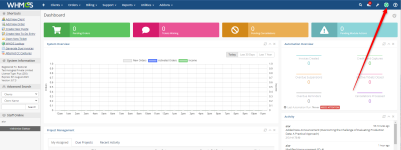
- Yönetici paneline girin ve sağ üstteki hesap menüsünden Account > My Account sayfasını açın.
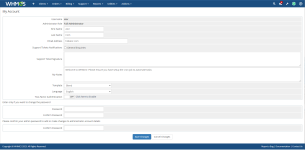
- Yeni şifreyi iki şifre kutusuna da yazın. İki kutuyu boş bırakırsanız mevcut şifre değişmez.
- Sayfanın altındaki Confirm Password alanına mevcut şifrenizi girin; WHMCS bu sayfadaki her değişiklikten önce bunu ister.
- Save Changes ile kaydedin, sonra çıkış yapıp yeni şifreyle yeniden girerek deneyin.
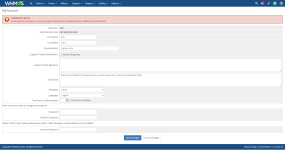
"Email address is already in use by a support department" hatası
Bu doğrulama hatası şifreyle değil, e-posta alanıyla ilgilidir. My Account formu kaydedilirken e-posta alanı da denetlenir. Yönetici hesabınızın e-postası bir destek departmanının adresiyle (ör. [email protected]) aynıysa, yalnızca şifreyi değiştirmek isteseniz bile kayıt reddedilir. Bunun için veritabanına geçmeniz gerekmez:- Aynı formda Email Address alanını yalnızca sizin okuduğunuz kişisel bir iş adresiyle değiştirin (ör. [email protected]).
- Yeni şifreyi ve Confirm Password alanını doldurup kaydedin.
- Departmanın adresini değiştirmeyi tercih ederseniz bunu Configuration > System Settings > Support Departments altında yapın ve bu adrese bağlı e-posta yönlendirme (piping) ya da içe aktarma (importing) ayarlarını da güncelleyin.
2. Şifremi unuttum akışı ve e-posta gelmediğinde
- Yönetici giriş sayfasında Forgot your password? bağlantısına tıklayın.
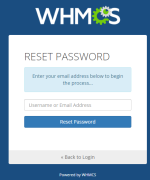
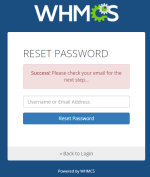
- Kullanıcı adınızı ya da hesaptaki e-posta adresini yazıp Reset Password düğmesine basın. "Success! Please check your email for the next step" benzeri bir mesaj görmelisiniz.
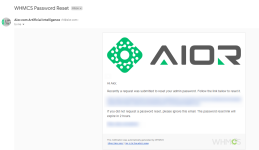
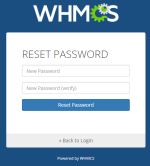
- E-postadaki bağlantıyı açın, yeni şifreyi iki kez girip kaydedin.
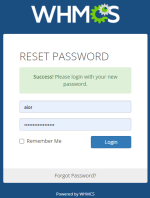
- Başarı mesajından sonra giriş sayfasına dönün ve yeni şifreyle oturum açın.
Forgot your password? bağlantısı görünmüyorsa
Bağlantıyı, Configuration > System Settings > General Settings sayfasının Security sekmesindeki Disable Admin Password Reset seçeneği gizler. Panele giremiyorsanız ayarı veritabanından geri açabilirsiniz:
Kod:
SELECT setting, value FROM tblconfiguration WHERE setting = 'DisableAdminPWReset';
UPDATE tblconfiguration SET value = '' WHERE setting = 'DisableAdminPWReset';Sıfırlama e-postası neden gelmez?
Sıfırlama isteğinden sonra "There was an error sending the email. Please try again" hatası çıkıyorsa WHMCS iletiyi hiç gönderememiştir. Aşağıdaki kontrolleri yapın ya da doğrudan 3. bölümdeki veritabanı yöntemine geçin.- Spam klasörü: Önce burayı ve posta kutunuzdaki kuralları kontrol edin. Alan adınız adına gönderilen ama SPF, DKIM ve DMARC kayıtlarıyla uyuşmayan posta sık sık spam olarak işaretlenir ya da reddedilir.
- Yanlış adres: Yönetici hesabındaki e-posta eski ya da hatalı yazılmış olabilir. Veritabanında SELECT id, username, email FROM tbladmins; sorgusuyla kontrol edin.
- Posta sağlayıcısı: General Settings'in Mail sekmesinde varsayılan sağlayıcı PHP Mail'dir. Güvenilir teslim için kimlik doğrulamalı SMTP ya da desteklenen sağlayıcılardan birini (Microsoft, Mailgun, SendGrid, SparkPost) seçin ve Test Configuration ile deneyin. Microsoft 365'te temel (kullanıcı adı ve şifreyle) SMTP kimlik doğrulaması kiracı (tenant) düzeyinde kapalı olabilir; bu durumda OAuth ile bağlanan Microsoft sağlayıcısını kullanın. Google Workspace ya da Gmail hesabıyla gönderecekseniz SMTP'yi seçin; Service Provider olarak Google'ı, SMTP Authentication olarak OAuth2'yi belirleyin.
- Disable Email Sending: Aynı sekmedeki bu anahtar açıksa WHMCS hiç posta göndermez. Belgeler bu anahtarı test ve geliştirme kurulumları için önerdiğinden, bir test kopyasından taşınan kurulumda açık unutulmuş olabilir.
- Ağ engeli: Birçok bulut ve VPS sağlayıcısı giden 25 numaralı portu varsayılan olarak engeller. PHP Mail kullanıyorsanız sunucunun posta sistemi alıcıya bu porttan bağlanır; port kapalıysa ileti kuyrukta bekler. SMTP için posta sağlayıcınızın belirttiği gönderim portunu, genellikle 587 ya da 465'i kullanın.
Bash:
# cPanel / Exim
grep -i "[email protected]" /var/log/exim_mainlog | tail -n 20
# Postfix (Debian/Ubuntu: mail.log, RHEL ailesi: maillog)
grep -i "[email protected]" /var/log/mail.log /var/log/maillog 2>/dev/null | tail -n 20
# Günlük dosyası yoksa (yalnızca systemd journal kullanan sistemler)
journalctl --since today | grep -i "[email protected]" | tail -n 203. Veritabanından şifre sıfırlama (resmî yöntem)
WHMCS belgelerindeki yöntem, tbladmins tablosunda şifreyi MD5 işleviyle yazmak ve passwordhash alanını boşaltmaktır. WHMCS bir sonraki girişte şifreyi daha güçlü bir algoritmayla yeniden özetler (hash); MD5'in tek görevi, şifrenin o ana kadar tabloda düz metin olarak durmamasını sağlamaktır.Önce yedek alın. En iyisi tam yedektir; en azından değiştireceğiniz iki tabloyu dışa aktarın:
Bash:
# Veritabanı adı ve kullanıcısı configuration.php içindeki $db_name ve $db_username değerleridir
# $db_host localhost değilse komutlara -h <sunucu> ekleyin
mysqldump --single-transaction -u whmcs_kullanici -p whmcs_db > whmcs-tam-$(date +%F).sql
mysqldump --single-transaction -u whmcs_kullanici -p whmcs_db tbladmins tblconfiguration > whmcs-yonetici-$(date +%F).sqlphpMyAdmin ile adım adım:
- Kontrol panelinizden (cPanel, Plesk, DirectAdmin vb.) phpMyAdmin'i açın ve $db_name satırında yazan veritabanını seçin.
- tbladmins tablosunu açın (Browse) ve şifresini sıfırlayacağınız yöneticinin satırını bulun. Kullanıcı adına ve e-postaya bakarak doğru satırda olduğunuzdan emin olun.
- O satırdaki Edit bağlantısına tıklayın.
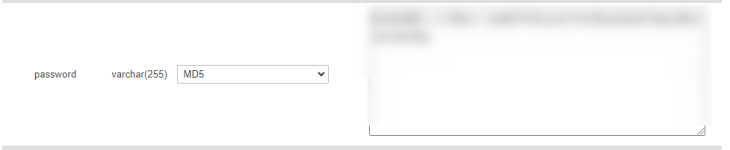
- password satırında Function listesinden MD5'i seçin, Value kutusundaki eski içeriği silin ve yeni şifreyi yazın.
- passwordhash satırındaki değeri tamamen silin.
- Diğer alanlara dokunmadan Go düğmesiyle kaydedin.
Aynı işlem SQL ile (phpMyAdmin'in SQL sekmesi ya da mysql istemcisi):
Kod:
-- 1) Hesapları listeleyin ve doğru id'yi not edin
SELECT id, username, email FROM tbladmins;

-- 2) Yalnızca o satırı güncelleyin (id'yi ve şifreyi kendinize göre değiştirin)
UPDATE tbladmins
SET password = MD5('Gecici2026sifreKx9mPq'), passwordhash = ''
WHERE id = 1;Girişten hemen sonra:
- Geçici şifreyle giriş yapın; WHMCS şifreyi bu anda güçlü bir özetle yeniden kaydeder.
- Account > My Account sayfasında, şifre yöneticisiyle üretilmiş kalıcı, güçlü ve benzersiz bir şifre belirleyin.
- Sıfırlama e-postasının gelmeme nedenini giderin ki bir dahaki sefere bu yola gerek kalmasın.
Yapmamanız gerekenler:
- Şifreyi MD5 seçmeden kaydetmeyin. Resmî yöntem MD5'i şart koşar; seçmezseniz şifre veritabanında düz metin olarak durur.
- 12 karakterden (Minimum Password Length daha yüksekse o değerden) kısa ya da harf ve rakamı birlikte içermeyen bir geçici şifre seçmeyin; & " ' < > karakterlerini de kullanmayın. Güncel sürümler girişte şifreyi yeniden özetlerken politikayı denetler; uymayan şifrede "You cannot use that password. Choose a different password." uyarısı çıkar.
- WHERE koşulu olmadan UPDATE çalıştırmayın; bütün yönetici hesaplarına aynı şifreyi vermiş olursunuz. Kime ait olduğunu bilmediğiniz yönetici satırlarını da değiştirmeyin.
- Başka bir kurulumdan kopyalanmış özetleri yapıştırmayın ve passwordhash değerini kendiniz üretmeye çalışmayın.
4. Hatalı denemeler sonrası IP yasağı
WHMCS, geçerli bir kullanıcı adıyla art arda üç kez hatalı giriş yapılan IP adresini yönetici girişinden geçici olarak yasaklar. Süreyi Security sekmesindeki Failed Admin Login Ban Time belirler; varsayılan değer 15 dakikadır ve hata mesajı yasağın ne zaman biteceğini gösterir. Yasağı kaldırmanın üç yolu var:- Beklemek: Mesajdaki süre dolunca yeniden deneyin; şifreyi elle yazmak yerine şifre yöneticinizden kopyalayın.
- Başka bir IP'den girmek: Örneğin telefonun mobil verisiyle giriş yapın. IP adresiniz Configuration > System Settings > Banned IPs listesinde görünüyorsa kaydı kırmızı silme simgesiyle kaldırın.
- Veritabanından silmek: phpMyAdmin'de tblbannedips tablosunu açın, IP adresinizin bulunduğu satırı bulun ve yalnızca o satırı silin.
Kalıcı çözüm için ofisinizin sabit IP adresini Security sekmesindeki Whitelisted IPs listesine ekleyin; bu adresler hatalı girişler yüzünden yasaklanmaz. Yasak süresini 0 yapmayın: 0 bu korumayı tamamen kapatır ve giriş sayfasını kaba kuvvet (brute force) denemelerine açık bırakır.
5. 2FA cihazı kaybolduğunda
Yedek kodunuz varsa: 2FA'yı kurarken WHMCS size, dörder karakterlik dört gruptan oluşan 16 karakterlik bir yedek kod (backup code) göstermişti.- Kullanıcı adı ve şifreyi girdikten sonra 2FA ekranının altındaki Login using Backup Code bağlantısına tıklayın.
- Yedek kodu girip Login düğmesine tıklayın. WHMCS sizi içeri alır ve yeni bir yedek kod üretir; devam etmeden önce bunu güvenli bir yere kaydedin.
- Account > My Account sayfasında Two-Factor Authentication satırındaki Click here to Disable bağlantısıyla 2FA'yı kapatın ve şifrenizle onaylayın.
- Yeni cihazı aynı sayfadan tanımlayın: Two-Factor Authentication'ı açın, Time Based Tokens'ı seçip Get Started'a basın, QR kodu kimlik doğrulama uygulamasıyla tarayın, 6 haneli kodu girip Submit'e tıklayın ve yeni yedek kodu saklayın.
Kod:
UPDATE tbladmins SET authmodule = '', authdata = '' WHERE username = 'kullaniciadiniz';Cihaz elinizde ama kod kabul edilmiyorsa: Zamana dayalı kodlar sunucu saatine bağlıdır. Kodu uygulamadaki doğru kayıttan aldığınız hâlde "The code you entered did not match what was expected. Please try again." uyarısı çıkıyorsa sunucunun ve telefonun saatini karşılaştırın; WHMCS belgeleri bu uyarıyı saat uyuşmazlığıyla ilişkilendirir. Sunucuda saat senkronizasyonunu kontrol edin:
Bash:
timedatectl status   # saatin senkronize olduğu görünmeli
chronyc tracking # chrony kullanan sistemlerde güncel sapmayı gösterir6. Yönetici klasörünü bilmiyorsanız
Yönetici klasörünün adı güvenlik için değiştirildiyse /admin adresi genellikle 404 verir. Gerçek ad, WHMCS kök dizinindeki configuration.php dosyasında yazar:
Bash:
grep -n "customadminpath" /home/KULLANICI/public_html/configuration.php
# Örnek çıktı: 12:$customadminpath = "yonetim-x7k";
Bash:
grep -rl --include=configuration.php "cc_encryption_hash" /home /var/www 2>/dev/null- $customadminpath yalnızca klasör adını içerir, tam yolu değil. Ad yalnızca a-z harfleri, 0-9 rakamları, tire (-) ve alt çizgiden (_) oluşabilir, login gibi ayrılmış bir sistem adıyla çakışmamalıdır ve klasör WHMCS kök dizininde durmalıdır.
- You are attempting to access the admin area via a directory that is not configured ya da ...via a directory that is different from the one configured hatası, açtığınız klasörün configuration.php ayarıyla uyuşmadığını ya da $customadminpath satırının eksik veya hatalı olduğunu gösterir. ...via a custom directory, but we have detected the presence of a default "admin" directory too uyarısı ise özel klasörün yanında varsayılan admin klasörünün de durduğu anlamına gelir.
- Güncellemeden sonra yönetici paneli hata veriyorsa yeni sürümün admin klasöründeki dosyalar özel klasöre kopyalanmamış olabilir. Özel klasör kullanıyorsanız WHMCS, güncellemelerde bu dosyaları sizin taşımanızı bekler. Dosyaları taşıdıktan sonra güncellemenin oluşturduğu varsayılan admin klasörünü silin.
- Adres 403 Forbidden veriyorsa önce klasördeki .htaccess dosyasında bir IP kısıtlaması olup olmadığına bakın. IP adresiniz değiştiyse yenisini dosyaya ekleyin.
7. Erişimi geri aldıktan sonra: sıkılaştırma kontrol listesi
- Admin Log'u inceleyin: Configuration > System Logs > Admin Log, giriş ve çıkış zamanlarını, IP adreslerini ve kullanıcı adlarını gösterir. Tanımadığınız bir IP ya da saat görürseniz olayı unutulmuş şifre değil, olası bir ihlal olarak ele alın: Bütün yönetici şifrelerini değiştirin ve Administrator Users listesinde tanımadığınız bir hesap olup olmadığına bakın.
- Tahmin edilmesi zor kullanıcı adları: admin, administrator gibi adlardan kaçının. Kullanıcı adları harfle başlamalı ve yalnızca harf ve rakam içermelidir.
- Herkese ayrı hesap: Ortak hesap kullanmayın. Ayrılan personelin hesabını Administrator Users altında Disable seçeneğiyle kapatın.
- En az yetki (least privilege): Configuration > System Settings > Administrator Roles altındaki üç varsayılan rolü (tam yetkili yönetici, satış ve destek) gözden geçirin. Full Administrator sayısını bir iki kişiyle sınırlayın, diğerlerine yalnızca işlerini kapsayan roller verin.
- Herkes için 2FA: Configuration > System Settings > Two Factor Authentication altında Time-Based Tokens'ın etkin, Enable for use by Administrative Users seçeneğinin işaretli olduğundan emin olun; ardından Global Two-Factor Authentication Settings bölümünden yöneticileri bir sonraki girişte 2FA kurmaya zorlayın. Yedek kodları şifre yöneticisinde saklayın.
- IP kısıtlaması: Personel sabit IP kullanıyorsa yönetici klasörüne erişimi .htaccess ile sınırlayın (Apache 2.4 örneği aşağıda); sabit IP yoksa yönetici paneline VPN üzerinden erişmeyi düşünün. Ofis IP'sini Whitelisted IPs listesine ekleyin.
- Özel yönetici yolu: Klasörü $customadminpath ile yeniden adlandırın; en iyisi bunu kurulumdan hemen sonra yapmaktır. Ödeme geçidi ya da posta sağlayıcısı geri çağırma (callback) adresleri eski klasörü gösteriyorsa bunları da güncellemeniz gerekir.
- Yasak süresi ve sıfırlama bağlantısı: Failed Admin Login Ban Time'ı 0 yapmayın. Disable Admin Password Reset'i açmak, ele geçirilmiş bir posta kutusu üzerinden şifre sıfırlanmasını engeller ama kurtarmayı veritabanı erişimine bağlar; kararı ekibinizin yapısına göre verin.
Kod:
Require ip 203.0.113.10
Require ip 198.51.100.0/24Sık sorulan sorular
Mevcut şifremi veritabanından okuyabilir miyim?Hayır. Şifre tek yönlü bir özet olarak saklanır; yalnızca yeni bir şifre belirleyebilirsiniz.
MD5 güvensiz değil mi?
Kalıcı saklama için güvensizdir; resmî yöntemde yalnızca geçici bir adımdır. WHMCS ilk girişte şifreyi daha güçlü bir algoritmayla yeniden özetler. Bu yüzden sıfırlamadan hemen sonra giriş yapın ve şifreyi My Account'tan değiştirin.
Veritabanından sıfırladım, girişte "You cannot use that password" uyarısı çıkıyor.
Geçici şifre politikaya uymuyor (varsayılan olarak en az 12 karakter, en az bir harf ve bir rakam). 3. bölümdeki adımları daha uzun bir şifreyle tekrarlayın.
WHMCS Cloud kullanıyorum; veritabanı adımlarını uygulayabilir miyim?
Hayır, Cloud'da dosya ve veritabanı erişimi yoktur. Şifremi unuttum akışını kullanın; 2FA cihazınızı ve yedek kodunuzu birlikte kaybettiyseniz WHMCS Technical Support'a başvurun.
2FA yedek kodumu sonradan panelde görebilir miyim?
Hayır. Yedek kod yalnızca üretildiği anda gösterilir: 2FA kurulurken ya da yedek kodla girişten sonra yenisi oluşturulurken. Belgelere göre sonradan görmenin başka bir yolu yoktur. Kodu kaybettiyseniz ama hâlâ giriş yapabiliyorsanız My Account'ta 2FA'yı kapatıp yeniden kurun; kurulumun sonunda yeni bir yedek kod alırsınız. Giriş yapamıyorsanız 5. bölüme bakın.
Giriş sayfası beni sürekli geri atıyor; şifrem mi yanlış?
Hata mesajı olmadan giriş sayfasına geri dönmek ya da "Invalid CSRF Protection Token" hatası çoğunlukla şifreden değil, PHP oturumlarından kaynaklanır. WHMCS Invalid CSRF Protection Token çözüm rehberimize bakın.
Sonuç ve sonraki adımlar
Önce tablodan durumunuzu belirleyin: Giriş yapabiliyorsanız My Account, e-posta çalışıyorsa Forgot your password?, ikisi de olmuyorsa yedek aldıktan sonra veritabanı yöntemi. IP yasağı, 2FA ve adı değiştirilmiş klasör ayrı sorunlardır ve her birinin kısa bir çözümü var. İçeri girdikten sonra:- Geçici şifreyi My Account'ta kalıcı ve güçlü bir şifreyle değiştirin.
- Sıfırlama e-postasının gelmeme nedenini giderin ve akışı test edin.
- Admin Log'u inceleyin, 2FA'yı yeniden kurun ve yukarıdaki kontrol listesini uygulayın.
This guide covers the ways back into the WHMCS admin area on a self-hosted installation, organised by situation: changing the password the normal way, using "Forgot your password?", resetting it in the database when the email never arrives, lifting an IP ban, logging in after losing your two-factor authentication (2FA) device and finding a renamed admin folder. It ends with the hardening steps to take once you are back in. The steps follow the current WHMCS documentation (version 9.1, checked in October 2026), and menu names refer to the English admin interface. On older releases such as WHMCS 7.x, most of these settings sit under the Setup menu.
On WHMCS Cloud? Cloud instances give you no direct access to files or the database, so the database and configuration.php steps below do not apply to you. Use "Forgot your password?", and if you have lost both your 2FA device and your backup code, contact WHMCS Technical Support.
Which situation are you in?
| Situation | First move | Section |
|---|---|---|
| You can log in and just want a new password | Change it under Account > My Account | 1 |
| Saving fails with "Email address is already in use by a support department" | Give the admin account an address that no department uses | 1 |
| Forgotten password, but you know the username or email | Forgot your password? on the login page | 2 |
| The reset email never arrives | Check spam and the mail settings; reset in the database if needed | 2, 3 |
| "There was an error sending the email. Please try again" after a reset request | WHMCS cannot send mail; reset in the database and fix the mail settings afterwards | 2, 3 |
| There is no Forgot your password? link | Blank the DisableAdminPWReset value in tblconfiguration | 2 |
| The reset link is reported as invalid | Match the URL to the WHMCS System URL and request a new link | 2 |
| Your IP was banned after failed logins | Wait, log in from another IP, or delete the row in tblbannedips | 4 |
| 2FA device lost, backup code available | Login using Backup Code | 5 |
| 2FA device and backup code both lost | Clear authmodule and authdata in tbladmins | 5 |
| Admin URL unknown, /admin returns 404 | Read $customadminpath in configuration.php | 6 |
| "You cannot use that password" at login | Set a password that meets the policy | 3 |
| Bounced back to the login page, or "Invalid CSRF Protection Token" | A session problem, not a password problem; see our CSRF guide | – |
Three checks before you start
- Are you on the right URL? Open the admin area at exactly the address in the WHMCS System URL setting (General tab of General Settings), https and www included. A different address can break sessions, CSRF checks and reset links.
- Which account? Know the username of the admin you are recovering. With several admins, that is what keeps you from editing the wrong row.
- Do you have server access? The database methods need a control panel with phpMyAdmin, or SSH. The database name, user and host are in the $db_name, $db_username and $db_host lines of configuration.php in the WHMCS root.
1. You can log in: change it under My Account
- Log in and open Account > My Account from the account menu at the top right.
- Type the new password into both password boxes. Leaving both empty keeps the current password.
- Enter your current password in Confirm Password at the bottom; WHMCS asks for it before saving any change on this page.
- Click Save Changes, then log out and back in with the new password.
"Email address is already in use by a support department"
This validation error is about the email field, not the password. Saving the My Account form checks the email field too, so if your admin email is the same as a support department's address ([email protected], say), the save is refused even when the password is the only thing you changed. You do not need the database for this one:- In the same form, change Email Address to a personal work address that only you read, such as [email protected].
- Fill in the new password and Confirm Password, then save.
- If you would rather change the department's address, do it under Configuration > System Settings > Support Departments, and update the email piping or importing setup that depends on that address.
2. The forgotten password flow, and when the email does not arrive
- On the admin login page, click Forgot your password?
- Enter your username or the account's email address and click Reset Password. You should see a message along the lines of "Success! Please check your email for the next step".
- Open the link in the email, enter the new password twice and save.
- After the success message, go back to the login page and log in with the new password.
No "Forgot your password?" link
The link is hidden by the Disable Admin Password Reset option on the Security tab of Configuration > System Settings > General Settings. If you cannot log in, switch it back on in the database:
Kod:
SELECT setting, value FROM tblconfiguration WHERE setting = 'DisableAdminPWReset';
UPDATE tblconfiguration SET value = '' WHERE setting = 'DisableAdminPWReset';Why the reset email does not arrive
If the reset request ends with "There was an error sending the email. Please try again", WHMCS could not send the message at all. Work through the checks below, or go straight to the database method in section 3.- Spam or junk folder: check it first, along with any mailbox rules. Mail sent in your domain's name without matching SPF, DKIM and DMARC records is often filtered or rejected.
- Wrong address: the email on the admin account may be outdated or mistyped. Check it in the database with SELECT id, username, email FROM tbladmins;
- Mail provider: the Mail tab of General Settings defaults to PHP Mail. For reliable delivery, choose authenticated SMTP or one of the supported providers (Microsoft, Mailgun, SendGrid, SparkPost) and use Test Configuration. Microsoft 365 tenants may have basic (username and password) SMTP authentication switched off; in that case use the Microsoft provider, which signs in with OAuth. For Google Workspace or Gmail, choose SMTP, then set Service Provider to Google and SMTP Authentication to OAuth2.
- Disable Email Sending: if this toggle on the same tab is on, WHMCS sends no mail at all. The documentation recommends it for test and development installations, so it may still be on in a site copied from one.
- Network blocks: many cloud and VPS providers block outbound port 25 by default. With PHP Mail, the server's own mail system delivers to the recipient on that port, so a blocked port leaves the message waiting in the queue. For SMTP, use the submission port your mail provider specifies, usually 587 or 465.
Bash:
# cPanel / Exim
grep -i "[email protected]" /var/log/exim_mainlog | tail -n 20
# Postfix (Debian/Ubuntu: mail.log, RHEL family: maillog)
grep -i "[email protected]" /var/log/mail.log /var/log/maillog 2>/dev/null | tail -n 20
# No log file? (systems that keep logs in the systemd journal only)
journalctl --since today | grep -i "[email protected]" | tail -n 203. Reset the password in the database (the documented method)
The method in the WHMCS documentation is to write the password into tbladmins with the MD5 function and to clear the passwordhash field. On the next login WHMCS re-hashes the password with a stronger algorithm; MD5 is there only so the password does not sit in the table as plain text until then.Back up first. A full backup is best; at the very least, dump the two tables you are about to touch:
Bash:
# The database name and user are $db_name and $db_username in configuration.php
# Add -h <host> if $db_host is not localhost
mysqldump --single-transaction -u whmcs_user -p whmcs_db > whmcs-full-$(date +%F).sql
mysqldump --single-transaction -u whmcs_user -p whmcs_db tbladmins tblconfiguration > whmcs-admin-$(date +%F).sqlStep by step in phpMyAdmin:
- Open phpMyAdmin from your control panel (cPanel, Plesk, DirectAdmin and so on) and select the database named in $db_name.
- Browse the tbladmins table and find the row of the admin you are resetting. Check the username and email so you know it is the right row.
- Click Edit on that row.
- On the password row, choose MD5 from the Function list, clear the old content of the Value box and type the new password.
- Delete the value of passwordhash entirely.
- Leave every other field alone and click Go.
The same change in SQL (phpMyAdmin's SQL tab or the mysql client):
Kod:
-- 1) List the accounts and note the right id
SELECT id, username, email FROM tbladmins;

-- 2) Update that row only (use your own id and your own password)
UPDATE tbladmins
SET password = MD5('Temp2026passwordKx9mPq'), passwordhash = ''
WHERE id = 1;Right after you log in:
- Log in with the temporary password; WHMCS stores it with a strong hash at this point.
- Under Account > My Account, set a permanent, strong and unique password generated by a password manager.
- Fix whatever stopped the reset email, so you do not need this route next time.
What not to do:
- Do not save the password without MD5. The documented method requires it; without it, the password sits in the database as plain text.
- Do not pick a temporary password shorter than 12 characters (or than your Minimum Password Length, if that is higher) or without both a letter and a number, and leave out & " ' < >. Current versions check the policy when they re-hash the password at login, and a password that fails it produces "You cannot use that password. Choose a different password."
- Do not run UPDATE without a WHERE clause, which would give every admin account the same password, and do not edit rows of admins you cannot identify.
- Do not paste hashes copied from another installation or try to generate a passwordhash value yourself.
4. IP ban after failed logins
After three consecutive failed admin logins with a valid username, WHMCS blocks the source IP from the admin login for a while. The length comes from Failed Admin Login Ban Time on the Security tab; the default is 15 minutes, and the error message shows when the ban ends. There are three ways out:- Wait until the time in the message has passed, then try again with the password copied from your password manager rather than typed.
- Use another IP, for example your phone's mobile data, and log in. If your address appears under Configuration > System Settings > Banned IPs, remove it with the red delete icon.
- Delete it in the database: browse the tblbannedips table in phpMyAdmin, find the row with your IP address and delete that row only.
For a lasting fix, add your office's fixed IP to Whitelisted IPs on the Security tab; those addresses are never banned for failed logins. Do not set the ban time to 0: that switches the protection off and leaves the login page open to brute-force attempts.
5. Lost 2FA device
If you have the backup code: when you set up 2FA, WHMCS showed you a 16-character backup code made of four groups of four characters.- After entering your username and password, click Login using Backup Code at the bottom of the 2FA screen.
- Enter the code and click Login. WHMCS logs you in and generates a new backup code; save it somewhere safe before you go any further.
- Under Account > My Account, click Click here to Disable next to Two-Factor Authentication and confirm with your password.
- Enrol the new device from the same page: switch Two-Factor Authentication on, choose Time Based Tokens and click Get Started, scan the QR code with an authenticator app, enter the 6-digit code, click Submit and store the new backup code.
Kod:
UPDATE tbladmins SET authmodule = '', authdata = '' WHERE username = 'yourusername';Device in hand, but codes are rejected: time-based codes depend on the server clock. If you take the code from the right entry in your app and still see "The code you entered did not match what was expected. Please try again.", compare the server's clock with your phone's; the WHMCS documentation links this message to a time mismatch. Check time sync on the server:
Bash:
timedatectl status   # the clock should be reported as synchronized
chronyc tracking # on chrony systems, shows the current offset6. Unknown admin folder
If the admin folder was renamed for security, /admin usually returns a 404. The real name is in configuration.php in the WHMCS root:
Bash:
grep -n "customadminpath" /home/USER/public_html/configuration.php
# Example output: 12:$customadminpath = "manage-x7k";
Bash:
grep -rl --include=configuration.php "cc_encryption_hash" /home /var/www 2>/dev/null- $customadminpath holds the folder name only, not a path. The name may contain only a-z, 0-9, hyphens and underscores, must not clash with a reserved system name such as login, and the folder must sit in the WHMCS root.
- You are attempting to access the admin area via a directory that is not configured or ...via a directory that is different from the one configured means the folder you opened does not match configuration.php, or the $customadminpath line is missing or invalid. ...via a custom directory, but we have detected the presence of a default "admin" directory too means a default admin folder sits next to your custom one.
- If the admin area breaks after an update, the new release's admin files probably were not copied into the custom folder. With a custom folder, WHMCS expects you to move those files yourself whenever you update. After moving them, delete the default admin folder that the update created.
- On a 403 Forbidden, check that folder's .htaccess file for an IP restriction first. If your IP has changed, add the new one.
7. Once you are back in: a hardening checklist
- Review the Admin Log: Configuration > System Logs > Admin Log lists login and logout times, IP addresses and usernames. If you see an IP or a time you do not recognise, treat the incident as a possible breach rather than a forgotten password: change every admin password and check Administrator Users for accounts you do not know.
- Usernames that are hard to guess: avoid admin or administrator. Usernames must start with a letter and contain only letters and digits.
- One account per person: no shared logins. When someone leaves, tick Disable on their account under Administrator Users.
- Least privilege: review the three default roles (full administrator, sales and support) under Configuration > System Settings > Administrator Roles. Keep Full Administrators to one or two people and give everyone else a role that covers only their actual work.
- 2FA for everyone: under Configuration > System Settings > Two Factor Authentication, make sure Time-Based Tokens is active and Enable for use by Administrative Users is ticked, then use Global Two-Factor Authentication Settings to make admins enrol at their next login. Keep backup codes in a password manager.
- IP restrictions: if your staff have fixed IPs, limit the admin folder with .htaccess (Apache 2.4 example below); without fixed IPs, consider reaching the admin area over a VPN. Add the office IP to Whitelisted IPs.
- Custom admin path: rename the folder with $customadminpath, ideally right after installation. Payment gateway or mail provider callback URLs that point at the old folder must then be updated.
- Ban time and the reset link: never set Failed Admin Login Ban Time to 0. Turning on Disable Admin Password Reset stops a hijacked mailbox from being used to reset your password, but it ties recovery to database access, so decide based on how your team works.
Kod:
Require ip 203.0.113.10
Require ip 198.51.100.0/24FAQ
Can I read my current password from the database?No. It is stored as a one-way hash; all you can do is set a new one.
Isn't MD5 insecure?
For permanent storage, yes. In the documented method it is a temporary step: WHMCS re-hashes the password with a stronger algorithm at the first login. Log in right after the reset and change the password under My Account.
I reset it in the database and now see "You cannot use that password".
The temporary password does not meet the policy (by default at least 12 characters with at least one letter and one number). Repeat section 3 with a longer password.
I'm on WHMCS Cloud. Can I use the database steps?
No. Cloud gives you no file or database access. Use the forgotten password flow, and contact WHMCS Technical Support if you have lost both your 2FA device and your backup code.
Can I view my 2FA backup code again later?
No. The backup code is shown only when it is generated: when you set up 2FA, or when a backup-code login issues a new one. The documentation says there is no other way to see it afterwards. If you have lost it but can still log in, disable 2FA under My Account and set it up again; you get a new backup code at the end. If you cannot log in, see section 5.
The login page keeps sending me back. Is my password wrong?
A silent redirect to the login page, or "Invalid CSRF Protection Token", usually points to PHP sessions rather than the password. See our guide to the WHMCS Invalid CSRF Protection Token error.
Conclusion and next steps
Start by finding your row in the table: My Account if you can log in, Forgot your password? if email works, and the database method, after a backup, if neither does. IP bans, 2FA and a renamed folder are separate problems, each with its own short fix. Once you are back in:- Replace the temporary password with a permanent, strong one under My Account.
- Fix whatever stopped the reset email, then test the flow.
- Review the Admin Log, set 2FA up again and work through the checklist above.
Ekler
-
 1690747700385.webp70,1 KB · Görüntülenme: 12
 -
 1690747760429.webp46,9 KB · Görüntülenme: 12
 -
 1690747911980.webp53,6 KB · Görüntülenme: 12
 -
 1690748154255.webp88,4 KB · Görüntülenme: 12
 -
 1690748343529.webp30,7 KB · Görüntülenme: 8
 -
 1690748452276.webp2,6 KB · Görüntülenme: 8
 -
 1690748631860.webp8,9 KB · Görüntülenme: 8
 -
 1690748764597.webp13 KB · Görüntülenme: 8
 -
 1690748845151.webp12,7 KB · Görüntülenme: 8
 -
 1690748955847.webp25,9 KB · Görüntülenme: 8
 -
 1690748996279.webp10,8 KB · Görüntülenme: 7
 -
 1690749063829.webp12,5 KB · Görüntülenme: 7
Son düzenleyen:


